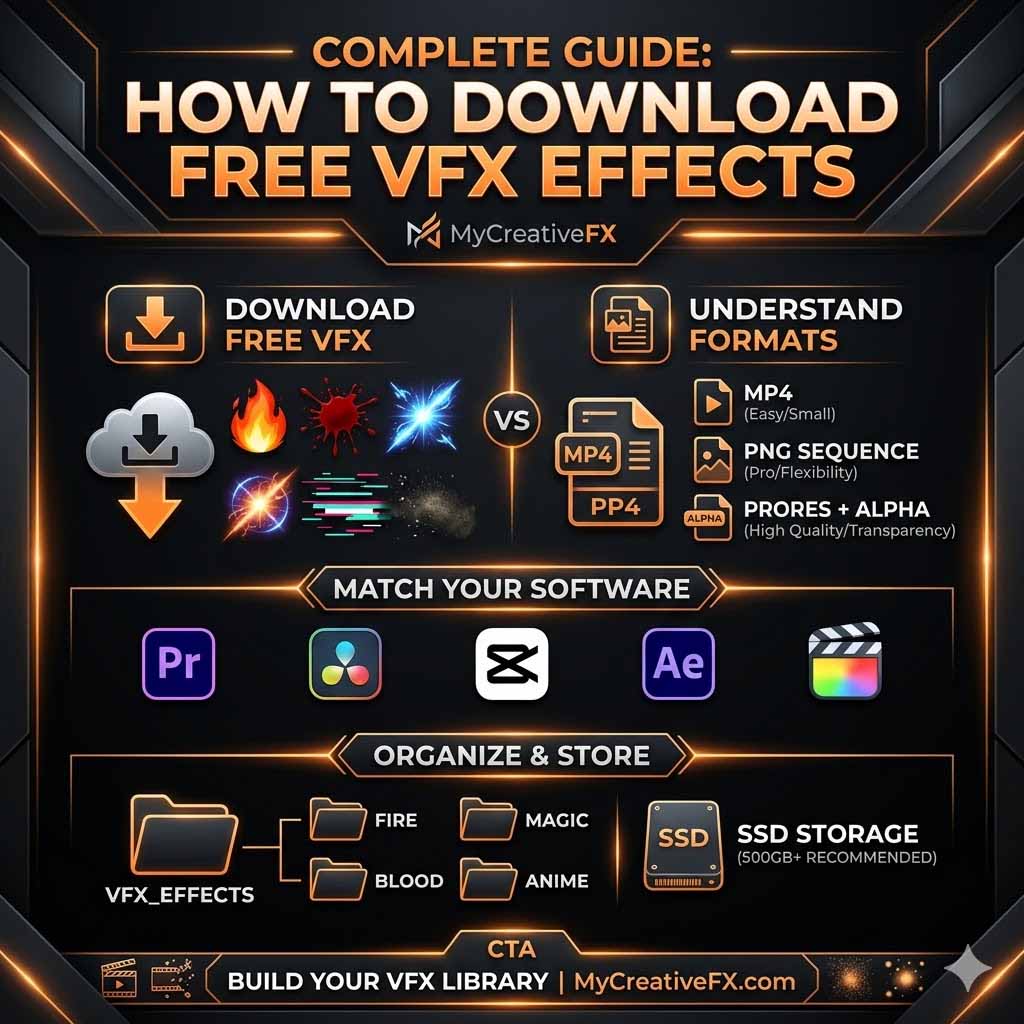
VFX Download Guide: Best Practices & Complete Tutorial (2026)
📥 Download Tutorial ⏱️ 9 min read ✅ Step-by-Step
Master the complete VFX download workflow. Learn where to download effects, file formats, organization strategies, and how to use them in your editor. Expert tips to avoid common mistakes and maximize your VFX library.
Click Here To Download VFX
Part 1: Where to Download VFX
Best Free VFX Download Sites
Start your VFX collection with these trusted sources:
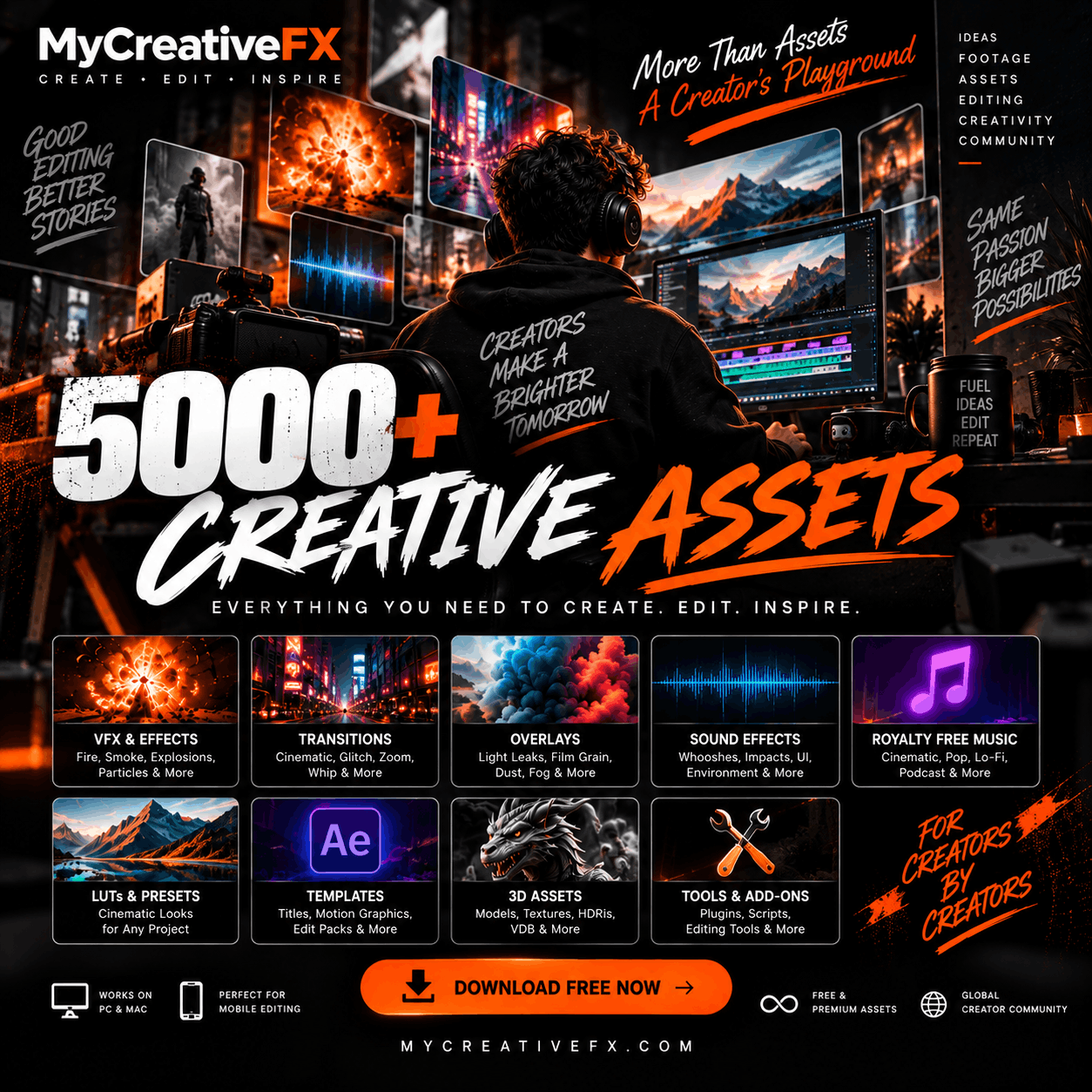
- MyCreativeFX: 5000+ 4k effects, watermark-free, CapCut optimized
- Pixabay VFX: Limited but quality-tested, CC0 licensed
- Pexels Videos: Small collection, royalty-free
Best Paid VFX Download Sites
- ActionVFX: 10,000+ professional effects, 4K–8K
- FootageCrate: Affordable subscription, 5000+ effects
- Envato Elements: All-in-one templates + VFX
Pro tip: Start free. Download from MyCreativeFX first. Upgrade to paid only if you exhaust the free library.
Part 2: Understanding VFX File Formats
.MP4 (Most Common)
Best for: CapCut, mobile editors, quick import
Pros: Compressed, fast download, works universally
Cons: Slightly lower quality than .mov, fixed compression
.MOV (Apple Standard)
Best for: Premiere Pro, DaVinci Resolve, Mac users
Pros: Preserves transparency, higher quality than MP4
Cons: Larger file size, slower to download
.PNG Sequence (Professional)
Best for: Advanced editors, maximum customization
Pros: Highest quality, pixel-perfect, infinite customization
Cons: Huge file size, requires manual import, complex workflow
.WEBM (Emerging Standard)
Best for: Web-based editors, modern workflows
Pros: Smaller than MP4, modern codec
Cons: Not universally supported yet
Recommendation: Download .MP4 for simplicity, .MOV if you use professional editors.
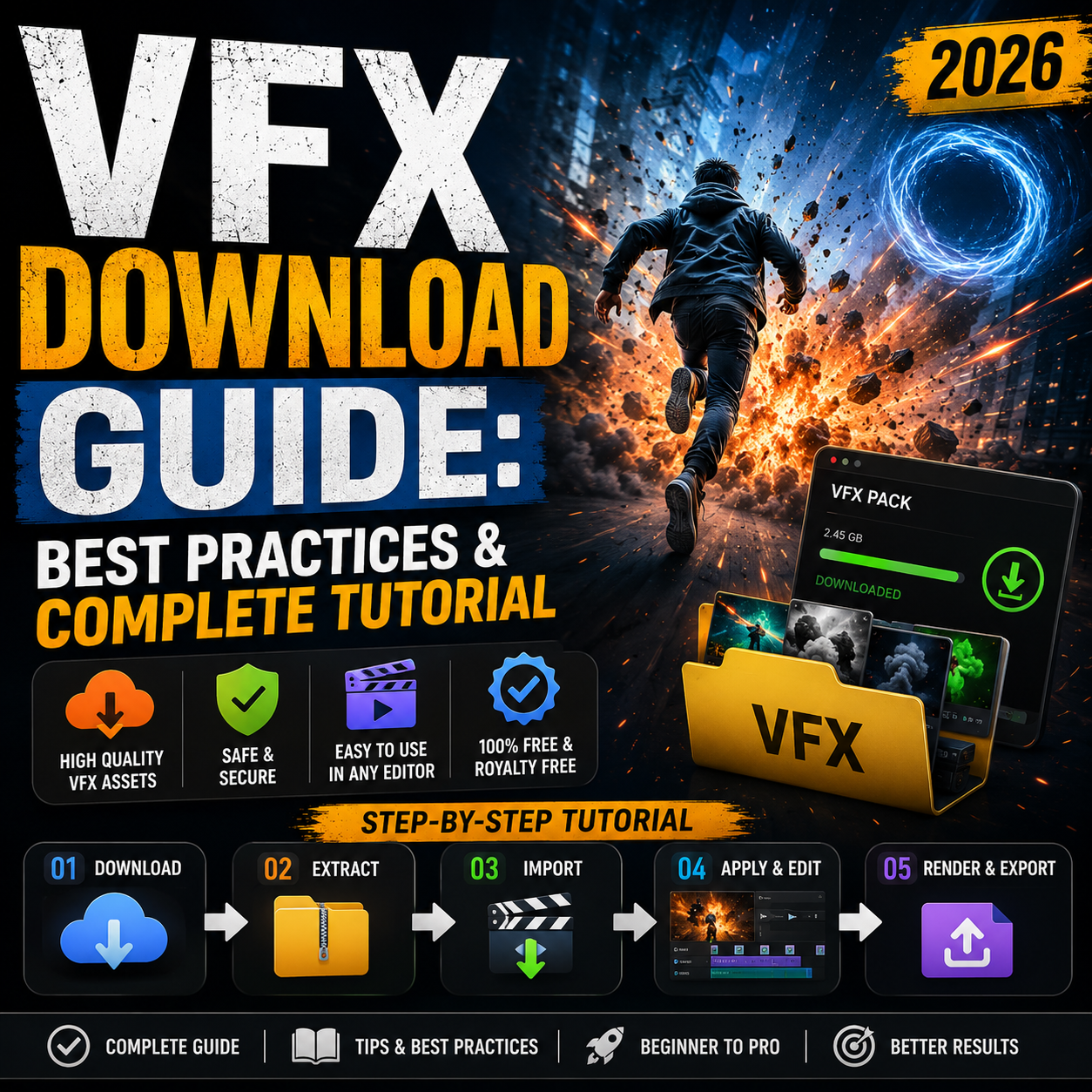
Part 3: How to Download VFX Step-by-Step
Step 1: Choose Your Download Source
Visit MyCreativeFX and browse the free VFX collection. You don't need an account to download.
Step 2: Select Your Format
If given a choice, select .MP4 for mobile, .MOV for professional editors. MyCreativeFX defaults to CapCut-optimized .MP4.
Step 3: Click Download
The file downloads to your computer's default Downloads folder (usually ~/Downloads on Mac, Users\Downloads on Windows).
Step 4: Check File Size
Verify the download completed. Incomplete files won't import properly. Right-click → Properties (Windows) or Get Info (Mac) to check size.
Step 5: Organize Into Folders
Move the downloaded VFX to organized folders on your computer for easy access later (see Part 4 below).
Part 4: Organization Strategy
Create a VFX Folder Structure
On your computer, create this folder hierarchy:
- /VFX_Collection
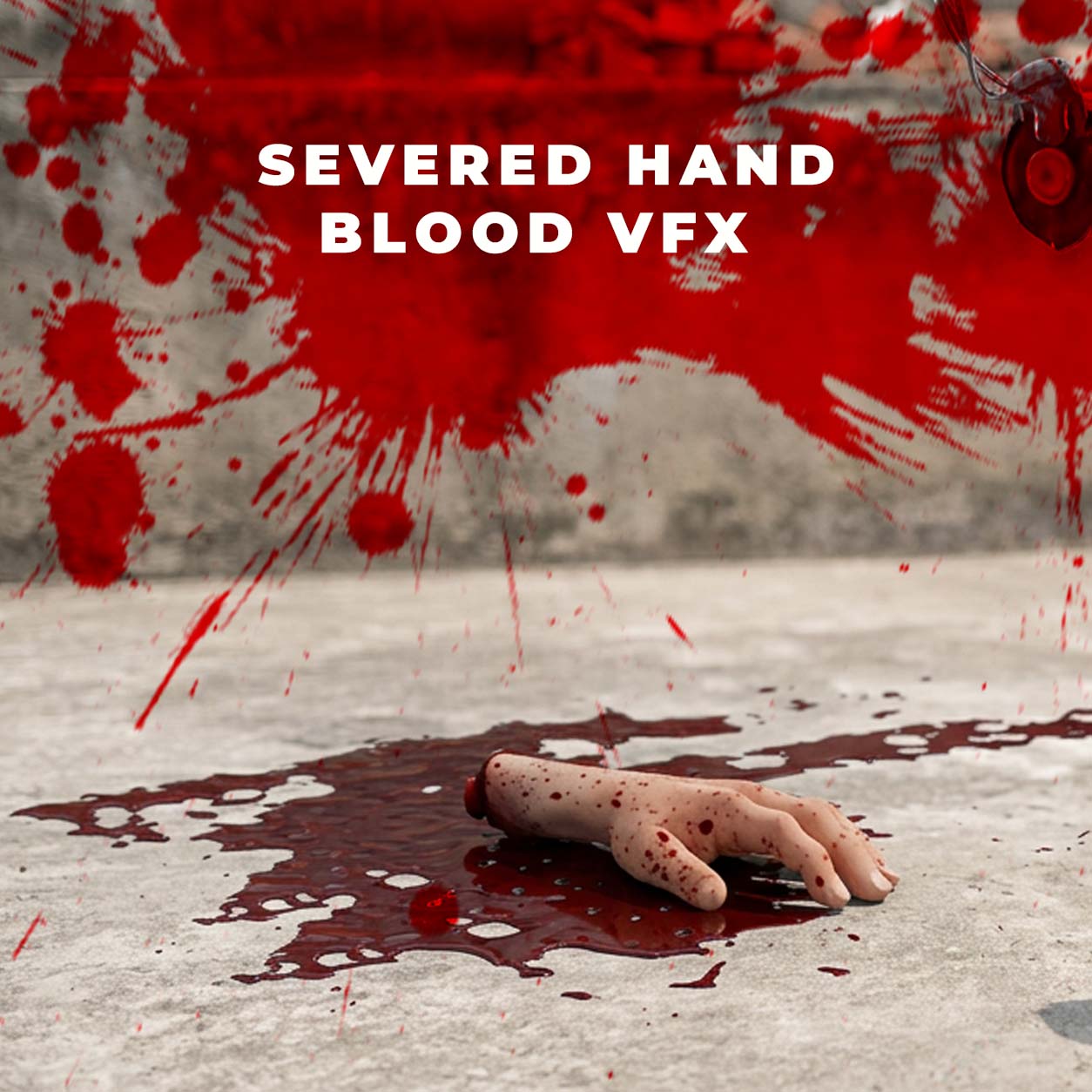
- /Action (muzzle flash, blood, impact, hits)
- /Transitions (glitch, wipe, zoom, morphs)
- /Ambient (glow, light leak, sparkle, bokeh)
- /Text (title reveals, pops, emphasis)
- /Specials (niche effects, trending, seasonal)
- /Archive (old/unused effects)
Batch Download & Organize
Instead of downloading effects one-by-one:
- Download 20–50 effects at once (browser tab multiple downloads)
- Let them all finish downloading to your Downloads folder
- Batch move them to the appropriate VFX subfolder
- Rename files for clarity (e.g., "muzzle_flash_pistol_01.mp4")
Naming Convention
Use this naming pattern: [Category]_[Type]_[Description]_[Number].mp4
Examples:
- action_muzzle_pistol_01.mp4
- transition_glitch_fast_02.mp4
- ambient_light_leak_warm_03.mp4
Part 5: Importing VFX Into Your Editor
CapCut (Mobile)
- Open CapCut and create a new project
- Tap Effects → Uploads
- Select the downloaded VFX file
- Drag onto the timeline
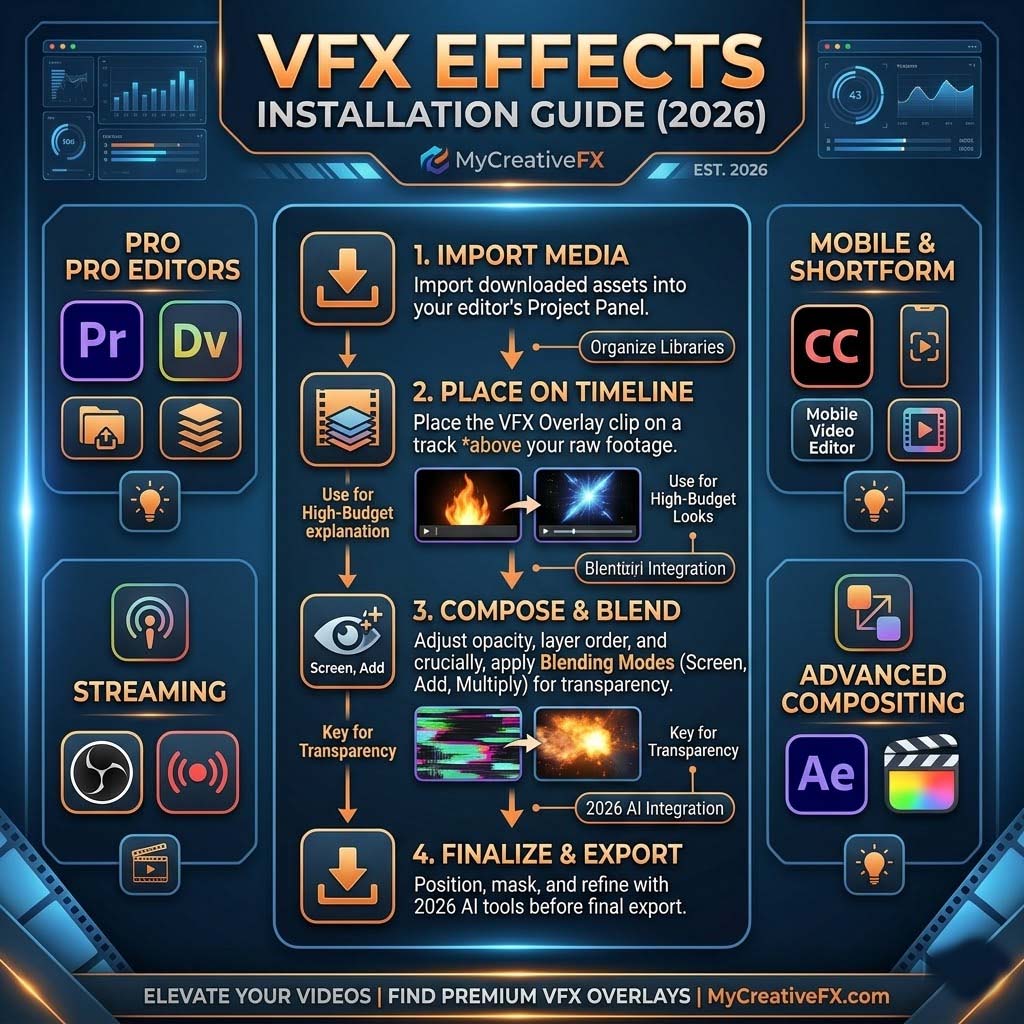
Adobe Premiere Pro
- File → Import
- Navigate to your VFX folder
- Select the .MP4 or .MOV file
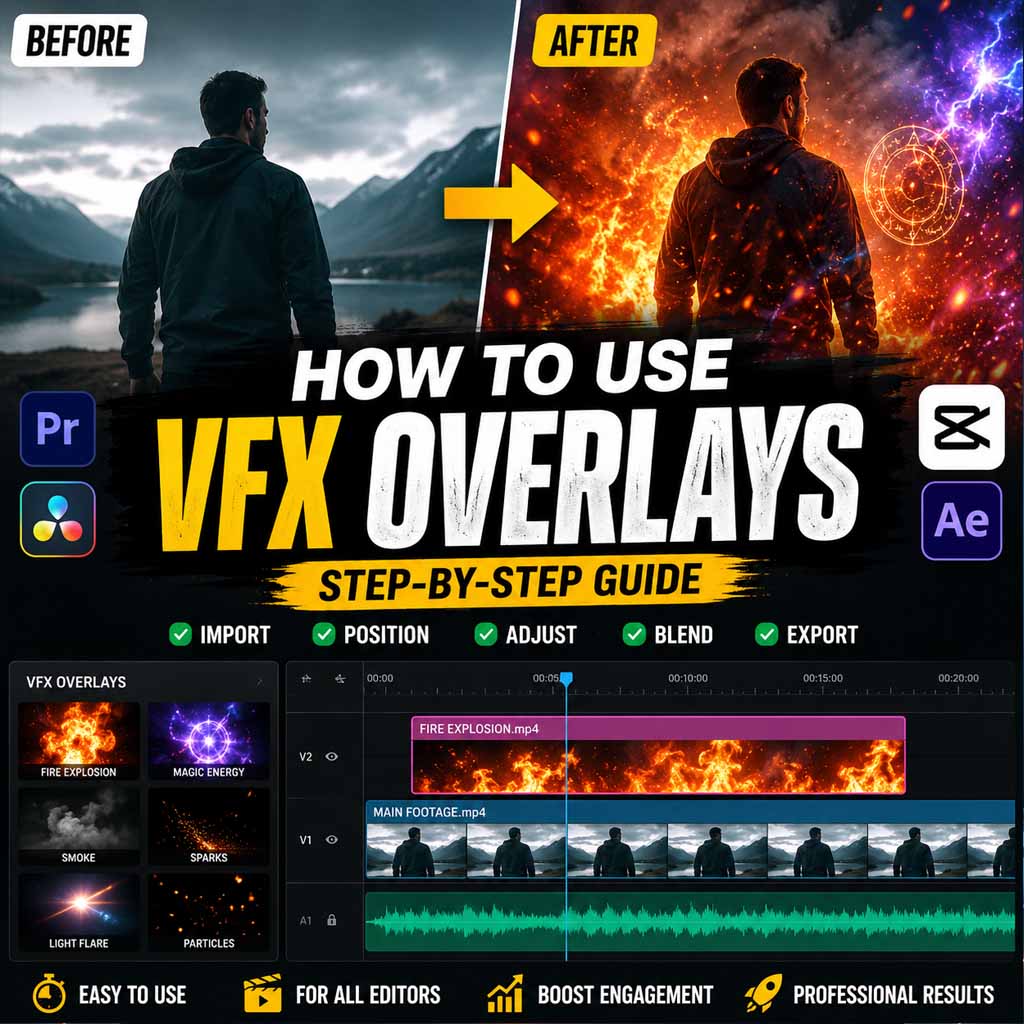
- Drag onto a new video track above your footage
DaVinci Resolve
- File → Import Media
- Select your VFX file
- Drag to timeline or Media Pool
Part 6: Storage & Backup Strategy
Local Storage
Keep your VFX collection on your computer's internal drive for fast access. Store in your main /VFX_Collection folder.
External Drive Backup
Download and back up your VFX library to an external SSD. This prevents data loss if your computer fails.
- Cost: $40–100 for 1TB SSD
- Benefit: Never lose your VFX library
- Frequency: Back up monthly or when you add 100+ new effects
Cloud Storage
For collaborative projects, sync your VFX folder to Google Drive or Dropbox. But don't rely solely on cloud (slow sync times).
Pro Tip: Create a VFX Download Checklist
Before your editing session, download 10–20 fresh effects. Categorize and organize them. This prevents mid-edit scrambling for the perfect effect.
Part 7: Common Download Mistakes to Avoid
- Downloading to wrong folder: Always download to a dedicated VFX folder, not your Downloads folder (cluttered)
- Not checking file integrity: Verify download size matches the site's listed size. Incomplete downloads won't work
- Mixing file formats: Stick to one format (.MP4 for mobile, .MOV for professionals)
- Over-downloading: Download only what you'll use. Thousands of unused effects = storage waste
- No backup: Back up your VFX library monthly. Lost files = lost productivity
- Poor naming: Generic names ("effect_1", "vfx_01") = hard to find. Use descriptive names
Part 8: Advanced: Download Batch Scripts
For power users managing 1000+ effects, consider automation:
- Browser extensions: Video DownloadHelper (Firefox) or similar tools for batch downloads
- Command-line tools: wget or curl for automated downloading (advanced)
- Automation apps: Zapier or IFTTT to trigger downloads based on keywords
Tip: Most creators don't need this. Manual batch downloading (20 at a time) is sufficient.
VFX Download Checklist
- ☐ Choose download site (MyCreativeFX recommended)
- ☐ Select file format (.MP4 for mobile, .MOV for pro)
- ☐ Click download and verify completion
- ☐ Move file to appropriate VFX subfolder
- ☐ Rename file using naming convention
- ☐ Import into your editor (CapCut, Premiere, DaVinci)
- ☐ Back up your VFX collection to external drive
- ☐ Test the effect in a sample video
Next: Start Downloading
Now that you know the best practices, download your first batch of free VFX effects and organize them properly. You're ready to elevate your video content.
Download Free VFX Now

 Premium Plans