 Premium Plans
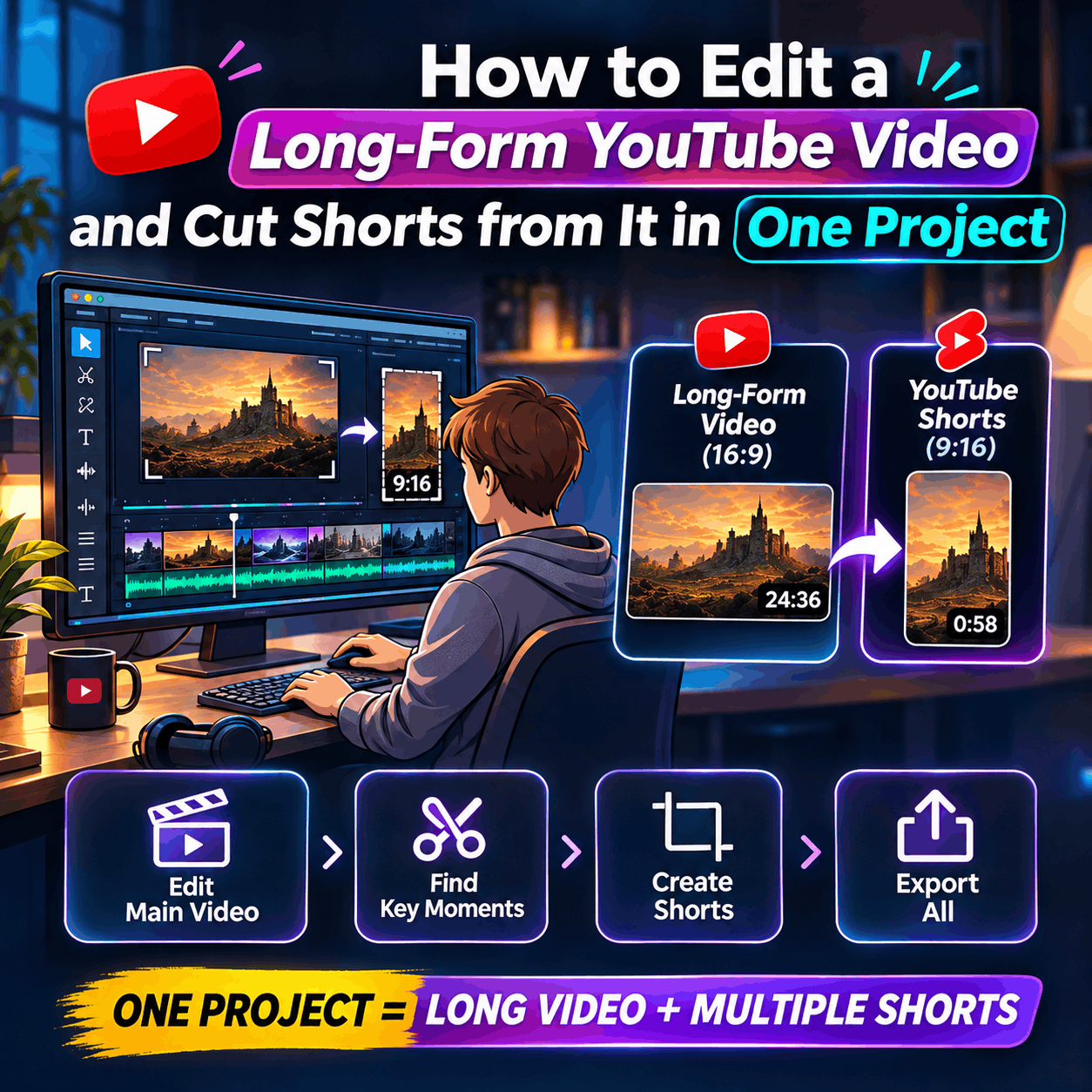
How to Edit a Long-Form YouTube Video and Cut Shorts from It in One Project
How to Edit a Long-Form YouTube Video and Cut Shorts from It in One Project
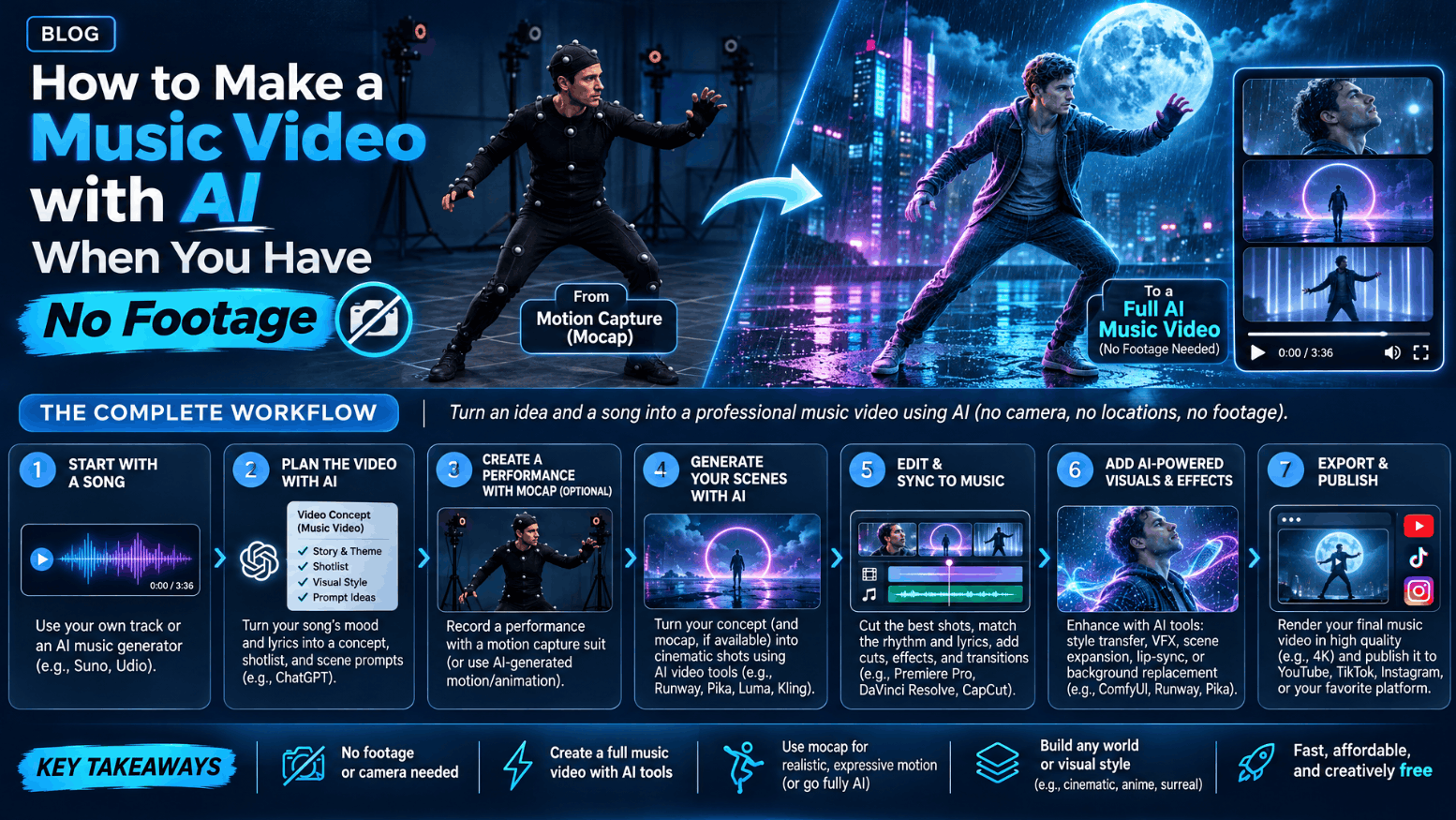
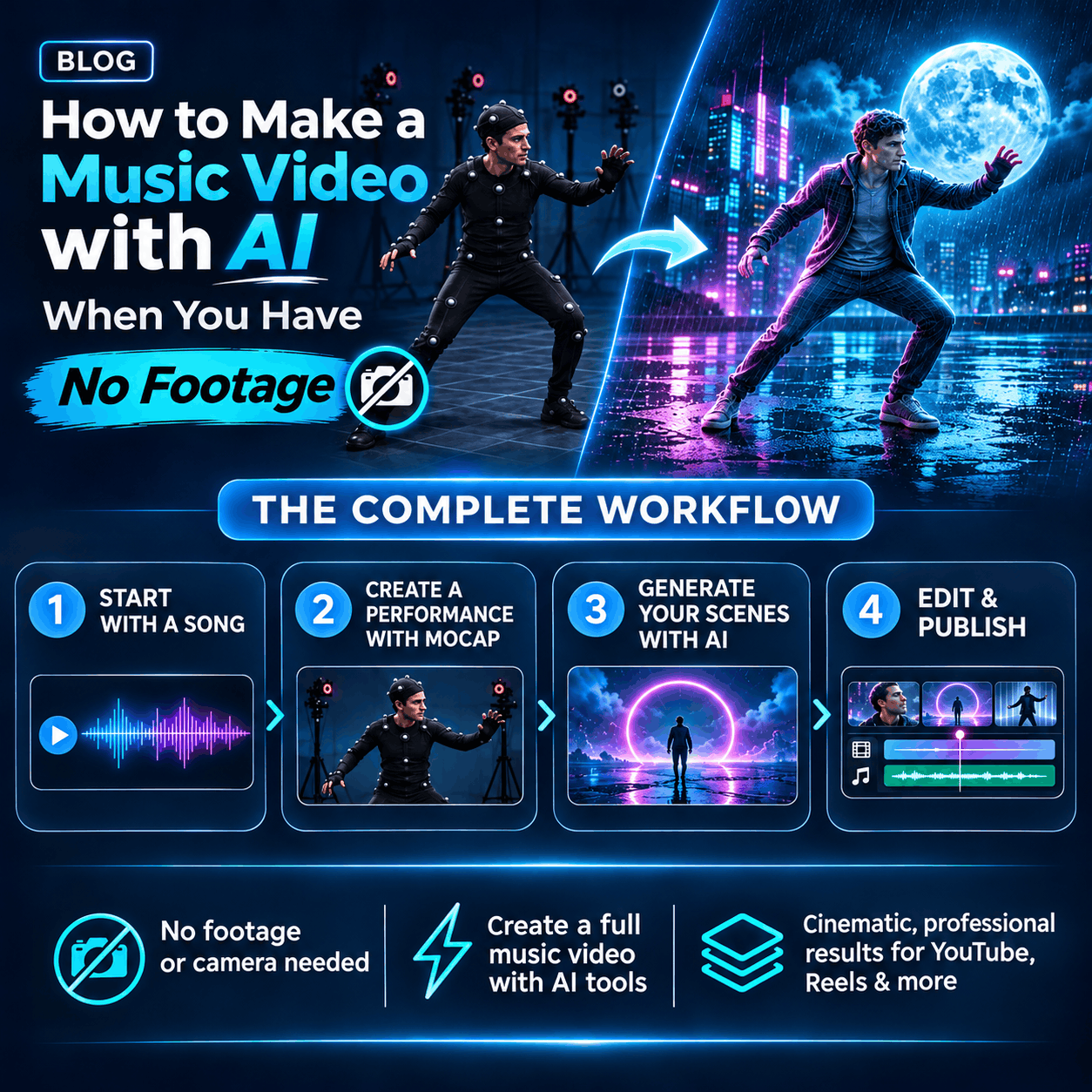
Not having performance footage, a crew, or a location used to be the end of a music video idea. Now it’s just a starting point. AI scene generation lets you build an entire music video — settings, lighting, movement, and mood — from a text description and your track, with nothing filmed beforehand.
This matters most for independent artists, small labels, and anyone releasing music without a video budget. The gap between “I have a track” and “I have a video” used to require a shoot day, a director, a location fee, and a few thousand dollars minimum. That gap has mostly closed. What’s left is a creative decision, not a logistical one: what should this song look like, and how do you describe that clearly enough for an agent to build it.
This is where the shift actually happens. Instead of booking a location and crew, you describe the world the song lives in a rainy city street, a rooftop at dusk, an imagined landscape that doesn’t exist anywhere and an AI agent generates the scenes to match. invideo’s music video maker works this way: you set the mood through locations, lighting, and visual references, and it builds out a sequence from that direction rather than from footage you already own.
You’re not limited to one visual approach either. You can generate an entire imagined world from scratch, use real performance footage if you have any, or blend both in the same cut — a verse built from generated scenes, a chorus that drops into live performance shots. The point isn’t that AI replaces a video shoot; it’s that a video shoot stops being a requirement for getting a finished video out.
This also changes what’s realistic for a single song. A no-footage workflow means you can build a visual story for a deep cut, not just the lead single, because the cost of making a video no longer scales with how much you’re willing to spend on production.
The quality of a no-footage music video comes down to how clearly you describe what you want, section by section. Vague prompts — “something moody” or “cool visuals” — produce generic results that could belong to any song. A useful brief covers four things:
Setting — where the scene takes place, and what’s happening in the background
Lighting and mood — amber stage light, grey overcast daylight, neon reflections on wet pavement
Movement — is the camera static, drifting slowly, or cutting fast between angles
Visual references — a specific color palette, a film or music video whose look you want to echo
Treat each section of the song as its own mini-brief rather than writing one description for the whole track. A quiet verse might call for a longer, stiller shot with minimal movement. A chorus might need more motion and more frequent cuts to match the energy. You can ask directly for a different pace on different sections, then adjust individual shot lengths once everything lands on the timeline.
It also helps to think in terms of a through-line rather than a series of disconnected shots. Even an imagined, non-narrative video benefits from a consistent visual world — the same lighting logic, the same color temperature, a recognizable location or motif that recurs — so the video reads as one piece rather than a slideshow of unrelated images.
A music video that ignores the song’s own rhythm feels off no matter how good the individual shots look. The usual approach: hold a verse on a longer, calmer shot, then switch through more images as the chorus builds toward its peak. Ask for that pacing shift directly — “slower on the verse, faster cuts through the chorus” — and refine the exact timing afterward on an editable timeline, shot by shot.
This is also where this kind of tool differs from a plug-and-play “auto-generate and done” button. The sequence isn’t locked once it’s created. You can go back in, extend how long a shot holds, move where a cut lands relative to a specific lyric, or swap out a scene that doesn’t match the song’s energy once you see it against the track. That back-and-forth — generate, watch it against the song, adjust — is usually where a rough sequence turns into something that actually feels built for the track rather than laid over it.
With no footage of your own, it’s easy to end up with a video that looks visually impressive but drowns out the song underneath it. The fix is to treat your track as the fixed point everything else is built around — using it as the main audio, then deciding deliberately where any other sound belongs. If you’re layering in ambient sound, crowd noise, or performance audio from a reference clip, that layer should only ever enter when you specifically want it to, with the track’s own levels left untouched otherwise. The song should never feel like it’s competing with its own video for attention.
Upload the track and write the brief. Add your song and describe the setting, mood, and which part of the track each scene should cover.
Generate the sequence. Let the agent build scenes from your brief — an imagined world, performance-style shots, or a mix of both.
Direct the pacing. Ask for pacing changes by section, then fine-tune individual shot lengths and cut points against the music.
Review against the track before exporting. Play the full cut, check every shot change against the song, balance any additional sound, and export once it feels right.
None of this requires editing experience going in. The heavy lifting — scene generation, initial sequencing, rough pacing — happens through plain-language direction, and the result lands on a normal editable timeline rather than a black box you can’t touch or adjust afterward. If you're exploring more AI-powered solutions for your creative projects, you can browse this AI tools directory to discover tools for different content creation needs.
Can I make a music video without any filmed footage at all?
Yes. You can describe every scene you want generated — setting, lighting, and visual style — and build the full video from those generated clips without ever picking up a camera.
Can I still use some of my own footage if I have it?
Yes. Generated scenes and real footage can sit in the same sequence, so you can mix AI-built scenes with performance clips or images you already have rather than choosing one approach exclusively.
How do I make sure the cuts match my song?
Keep the track as your main audio reference, direct the pacing by section — slower on the verse, faster through the chorus — and fine-tune individual shot lengths against the music on the timeline before exporting.
Do I need video editing skills to do this?
No. Scene generation and initial sequencing are handled through written direction. Basic familiarity with a timeline helps for final tweaks, but it isn’t a requirement to get to a finished, exportable video.
Can I make a shorter teaser from the same material?
Yes. You can select the part of the track and the shots you want to keep, then ask for a shorter sequence built from the same scenes, or trim it yourself afterward.