 Premium Plans


What Is Agentic Video Assembly? A Beginner’s Guide to AI Rough Cuts
What Is Agentic Video Assembly? A Beginner’s Guide to AI Rough Cuts
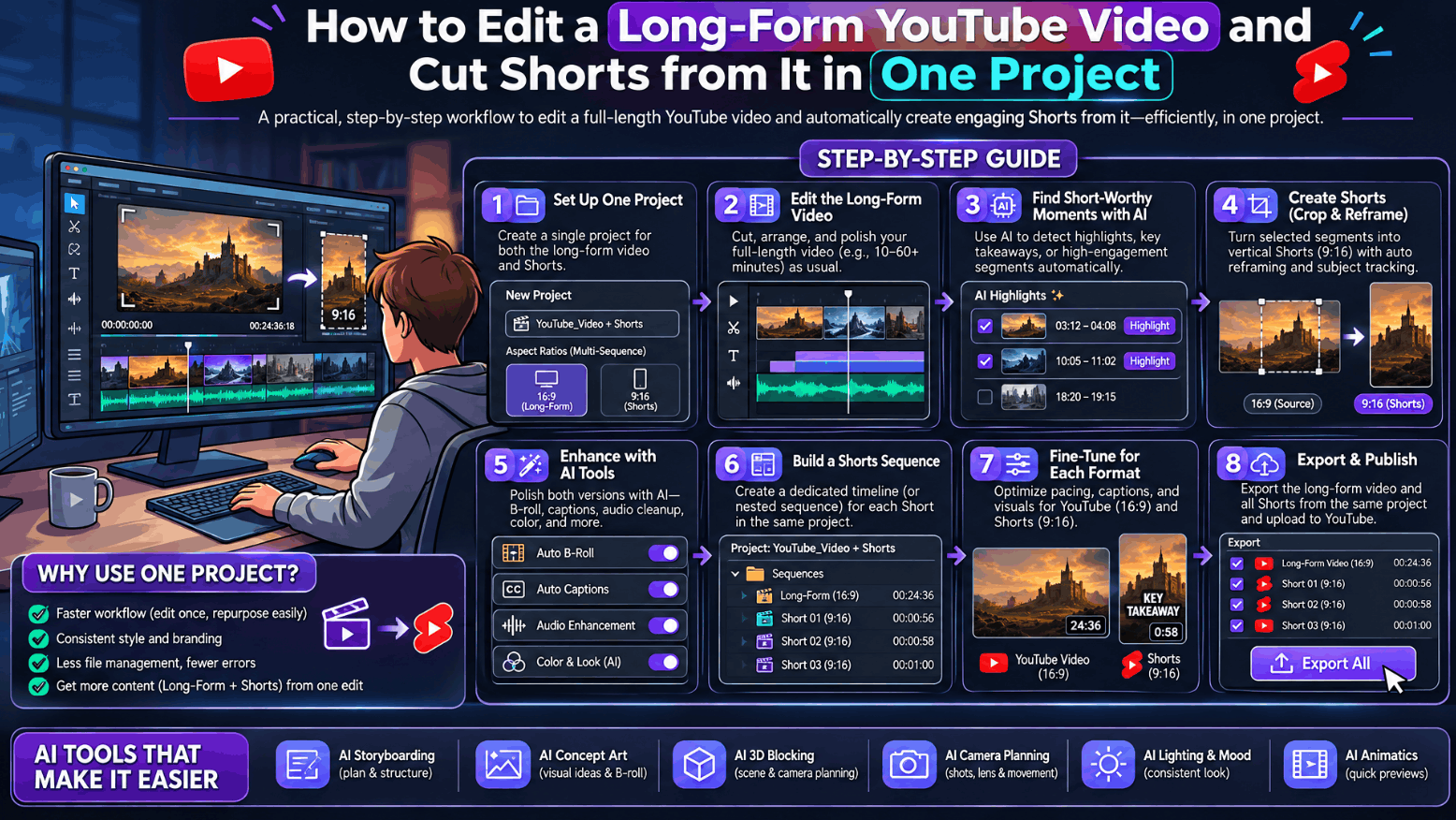
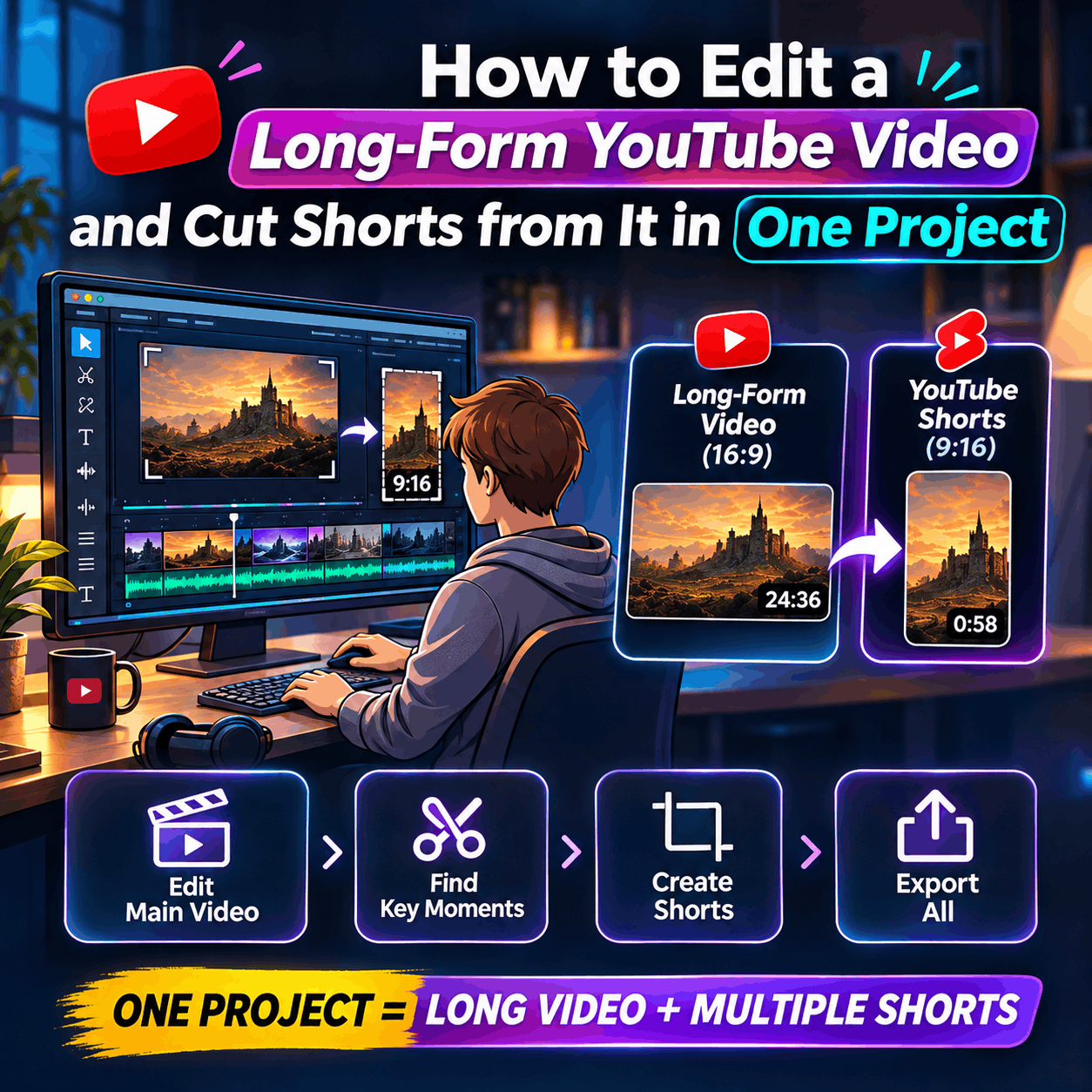
Most YouTube creators end up doing double the work for every video: one edit for the long-form upload, then a second pass to carve out Shorts from the same footage, often in a completely different app. Editing both from a single project removes that duplication. You build the long cut once, then branch vertical clips directly from the same timeline instead of starting over.
This only works if the editor can actually handle both formats without forcing a tradeoff between editing power and speed. A tool built for quick trims but no real color or audio control won’t hold up for a full-length video, and a tool built for professional long-form work doesn’t always make Shorts creation simple.
Keeping the long-form edit and the Shorts in the same project means every asset, every color grade, and every caption style is already in place when you go to cut something shorter. You’re not re-importing footage into a second tool or rebuilding a look from scratch for a 30-second clip.
This is the approach behind invideo’s YouTube video editor, which handles the long cut and the Short in the same project, with chapters, captions, color, and AI generation available on one timeline. Instead of treating Shorts as a separate production, they become a byproduct of the main edit.
The process starts the same way any YouTube edit does. You upload your footage, B-roll, music, voiceovers, and graphics, either organizing them yourself or letting AI sort them. From there, you tell the AI agent what kind of video you want, and it selects the best takes and builds a first cut on your timeline. AI agents can also analyze and log every take by dialogue, actor, prop, and camera angle, which matters once you’re trying to find one specific moment in hours of raw footage without scrubbing through all of it manually.
Once the first cut is assembled, you move into the part that actually shapes the final video: trimming clips, adjusting colors, balancing audio, and adding captions, text, music, effects, and transitions. The editor includes a full color grading suite with wheels, tone curves, hue and saturation curves, qualifiers, LUTs, and a waveform scope, along with a digital audio workstation for mixing voice, music, and effects on their own tracks with buses and loudness metering. None of this is simplified or stripped down to make room for the AI side of the tool.
This is where the single-project approach actually pays off. Once your long-form video is in good shape, you can branch a 9:16 version directly from it rather than exporting footage and starting a new project. Reframing tracks the subject through the vertical crop, so a shot that works in 16:9 gets automatically followed as it’s converted to vertical. You trim the clip down to under 60 seconds and export it, using the same color grade, captions, and audio work already done in the main edit.
The same logic applies to chapters. You drop chapter markers on the timeline where the topic changes, and the timestamps export already formatted for YouTube, ready to paste into the description. The first chapter needs to start at 0:00, and YouTube requires at least three total chapters for them to display.
A few specific AI-driven steps show up throughout a typical long-form edit, each handling a task that would otherwise eat a lot of manual time.
Logging footage. AI analyzes every take by dialogue, actor, prop, and camera angle, so finding a specific moment doesn’t mean scrubbing through the entire shoot.
Building the rough cut. Filler, silences, and flubbed takes get removed automatically as the AI assembles the strongest takes into a first cut on the multitrack timeline.
Cutting to the beat. You mark the first few beats of a music track, and the pattern carries through the rest of the edit, syncing cuts to the music automatically.
Matching a reference. You can share an edit you admire, and the AI applies its pacing and structure to your own footage as a starting point.
None of these steps replace your creative decisions. They remove the repetitive setup work so you spend your time on the parts of the edit that actually need judgment.
Long-form YouTube videos often involve more than one person touching the edit, and most traditional tools turn that into a bottleneck of exported files and version conflicts. A collaborative timeline lets a team work in one project simultaneously, with no file locking and no waiting for someone else to finish their pass. Review links let anyone scrub the finished cut in a browser and leave frame-accurate comments at exact moments, and those notes can be picked up directly from there rather than relayed secondhand.
Once the long-form edit and any Shorts are ready, export settings cover resolution from 720p up to 4K, frame rates of 24, 30, or 60 fps, and adjustable bitrate to balance quality against file size. YouTube’s recommended upload format is MP4 with H.264 at a minimum of 1080p, which matches the default export. If the mix itself is the deliverable, audio-only export is also available in WAV, AAC, or Opus. For anyone who needs to keep working in a desktop tool afterward, cuts and layers carry over to Premiere Pro, Final Cut Pro, or DaVinci Resolve.
Can I create a YouTube Short from a long-form video I already edited?
Yes. You can branch a 9:16 version from your long-form edit, with reframing tracking the subject through the vertical crop, then trim it to under 60 seconds and export.
How do I add chapters to a YouTube video?
Drop chapter markers on the timeline where the topic changes. The first chapter must start at 0:00, and YouTube requires at least three chapters total for them to show up.
Do I need to download software to edit YouTube videos this way?
No. The editor runs in a browser, saves projects to the cloud, and supports importing footage, editing on the timeline, grading color, and exporting without a local install.
Can a team edit the same YouTube video together?
Yes. A whole team can work in one project at the same time with no file locking, and review links let anyone leave frame-accurate comments the team can act on directly.
What export format does YouTube recommend?
MP4 with H.264 at a minimum of 1080p. Exports default to MP4 and can go up to 4K at 24, 30, or 60 fps.