 Premium Plans
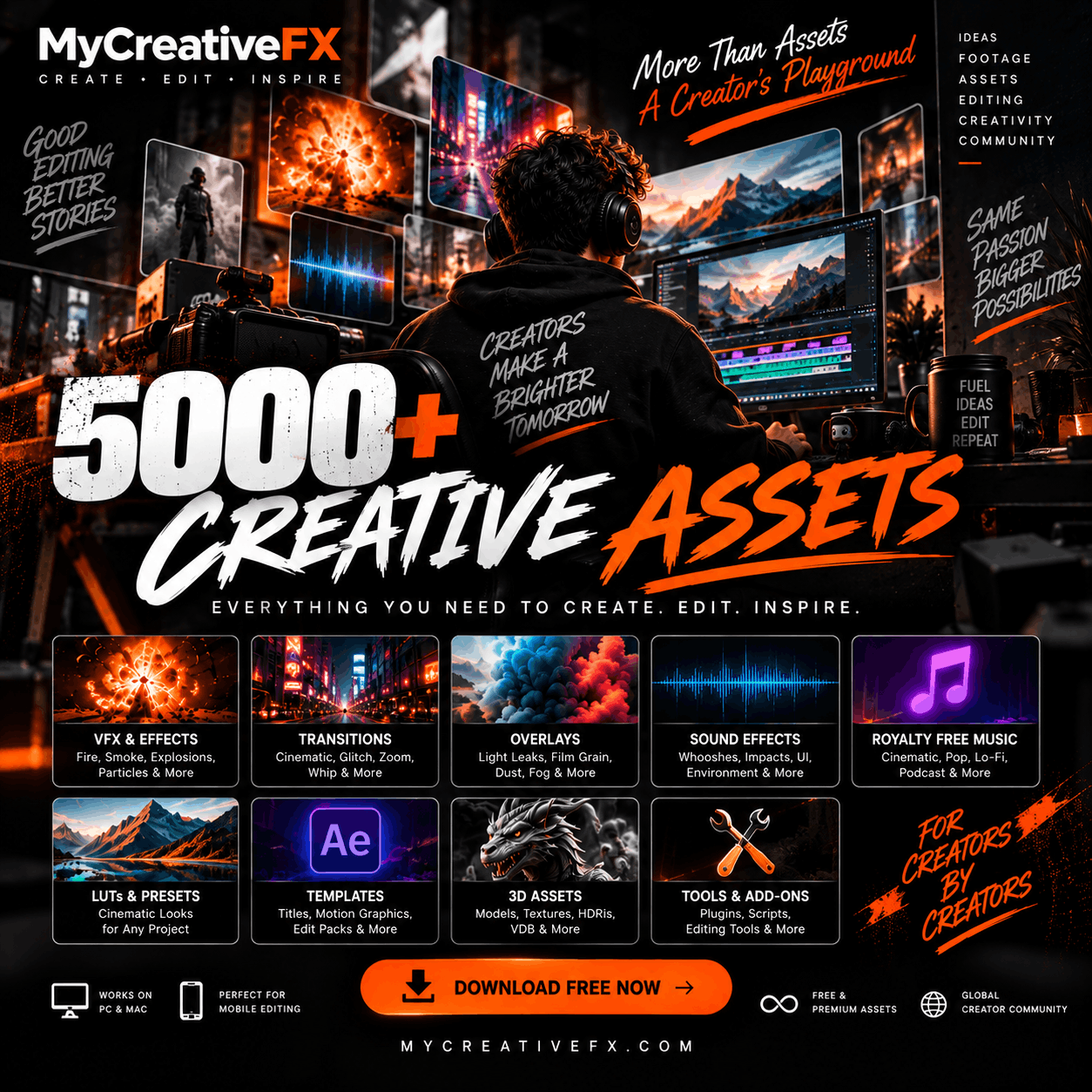
5,000+ Free Video Editing Assets: VFX, Transitions, Overlays & Music
5,000+ Free Video Editing Assets: VFX, Transitions, Overlays & Music
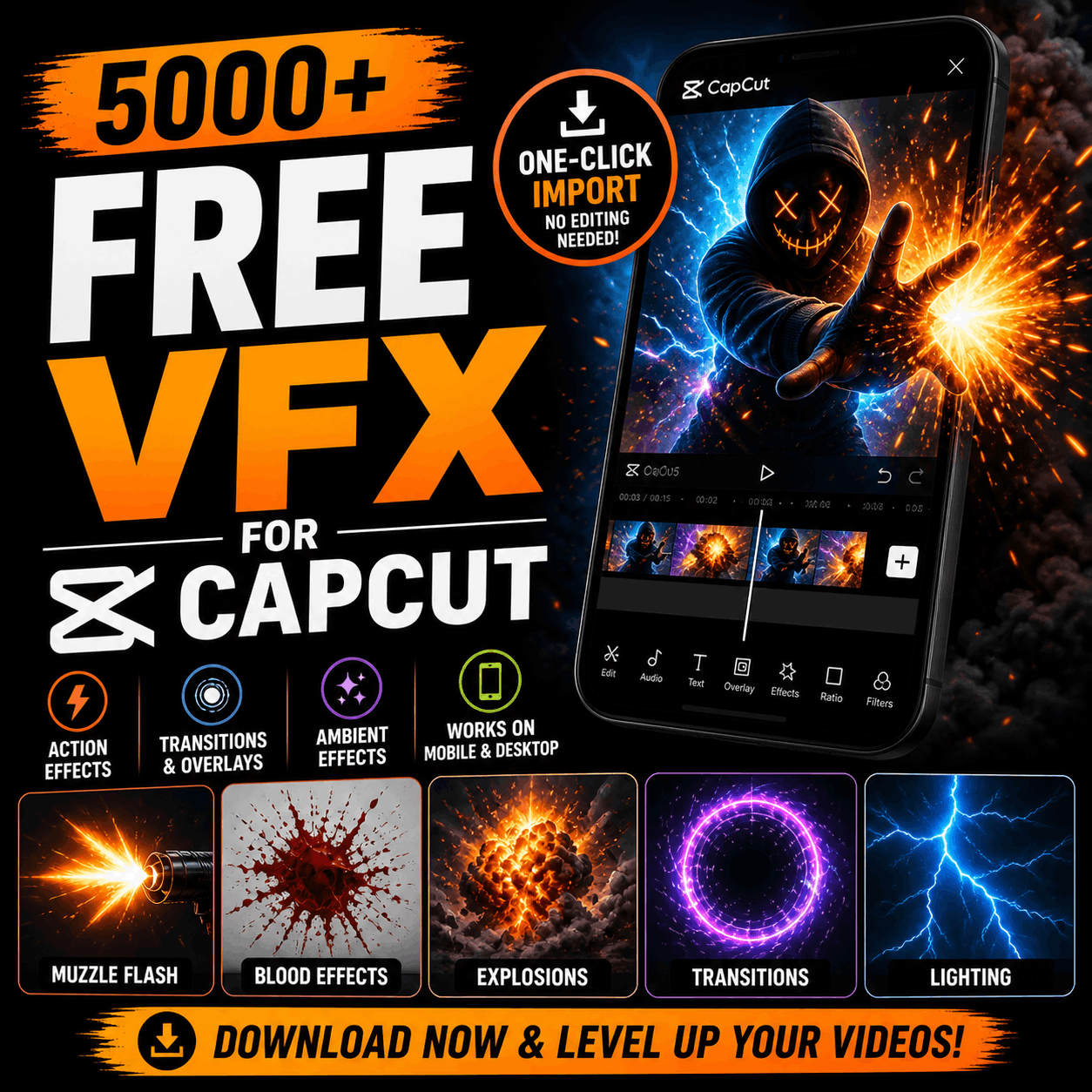
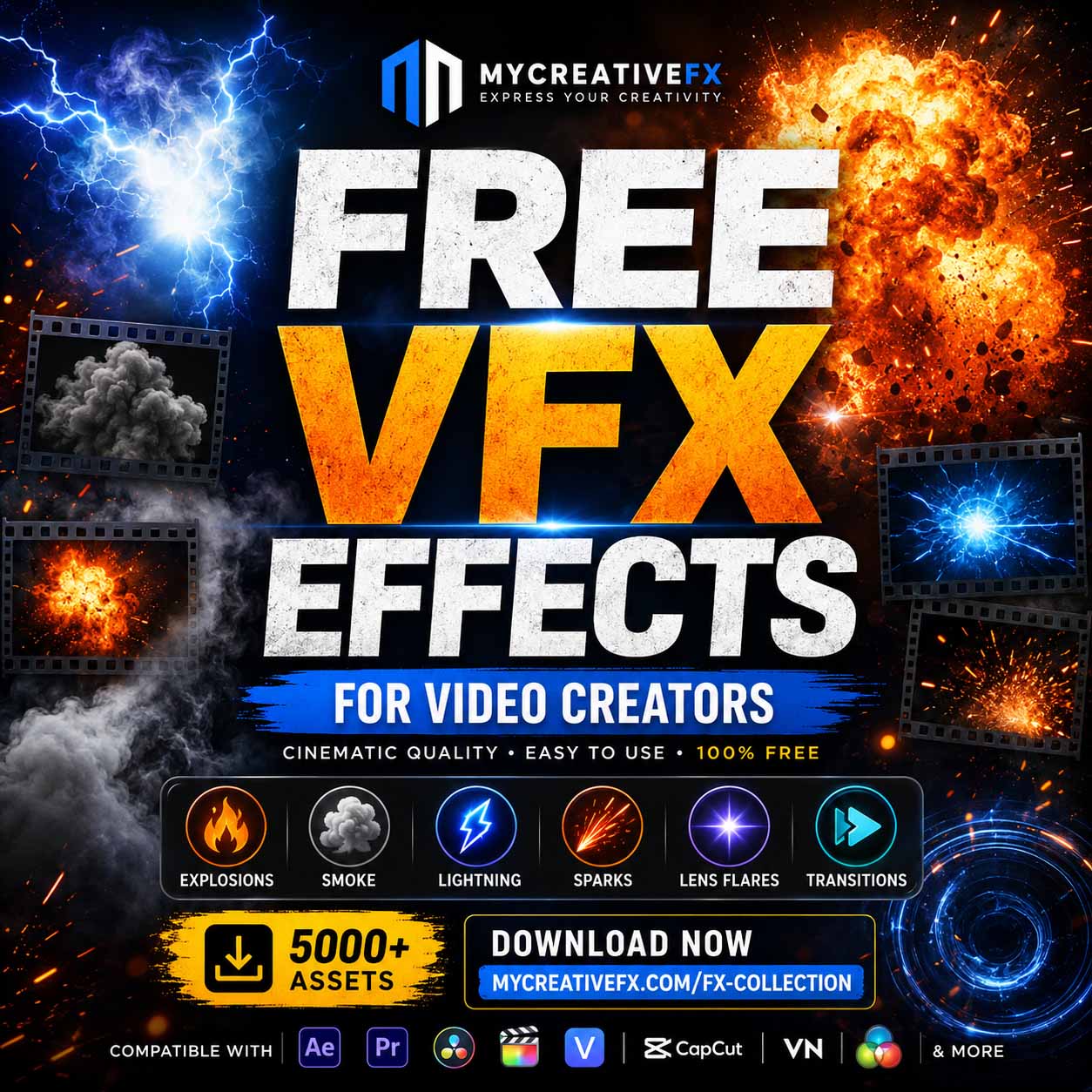
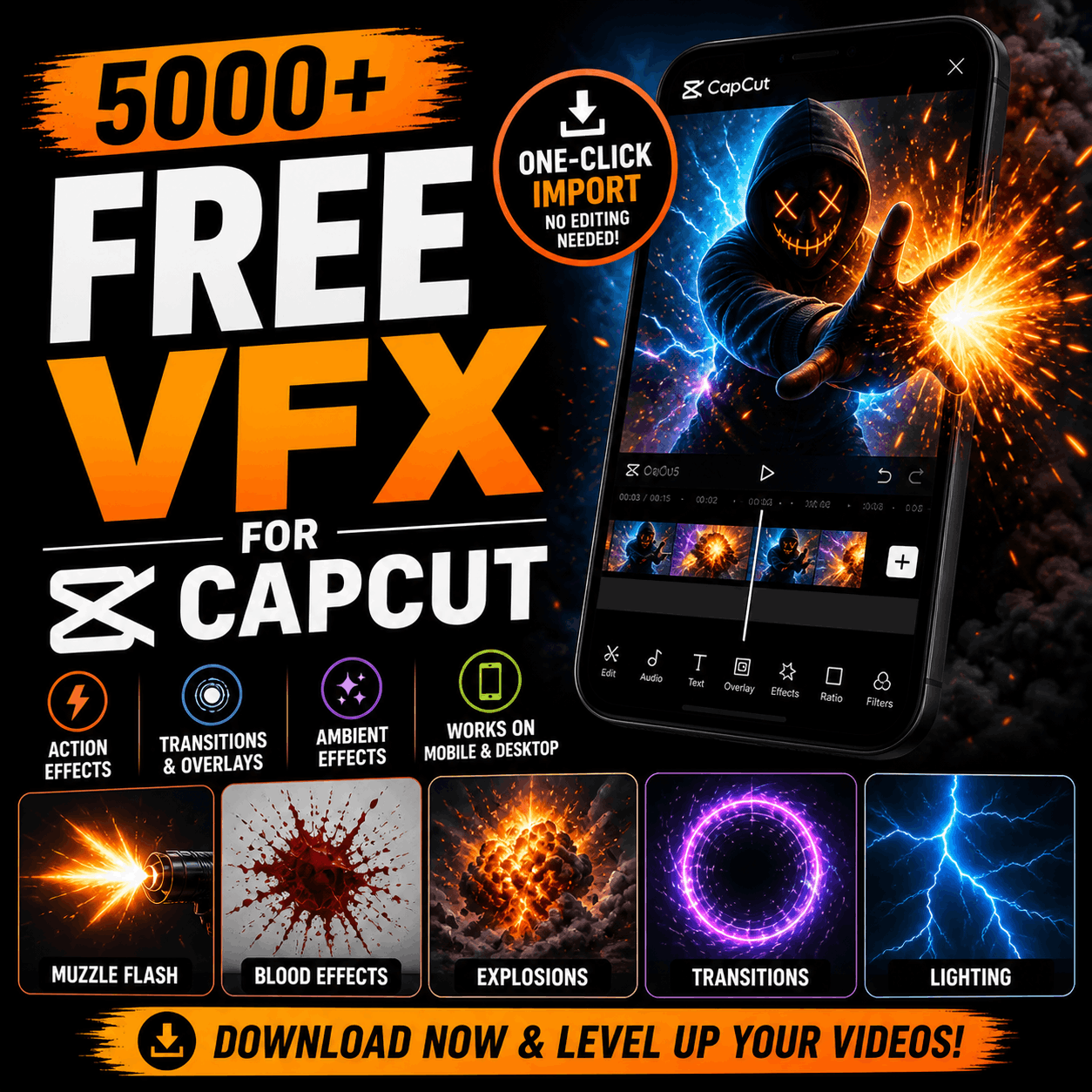
Looking for free VFX effects that work directly in CapCut? Stop searching. Download 500+ effects with one-click import, zero watermarks, and no editing skills required. From muzzle flashes to transitions to cinematic glows—everything you need to transform flat footage into viral-ready content.
CapCut is the #1 mobile video editor globally—but it's also where every TikTok creator is editing. To stand out, you need something competitors aren't using: quality VFX.
VFX make videos:
But most free VFX sites don't optimize for CapCut. They force downloads, format conversions, and manual imports. MyCreativeFX changes that: click "Download for CapCut," and the effect imports directly into your project.
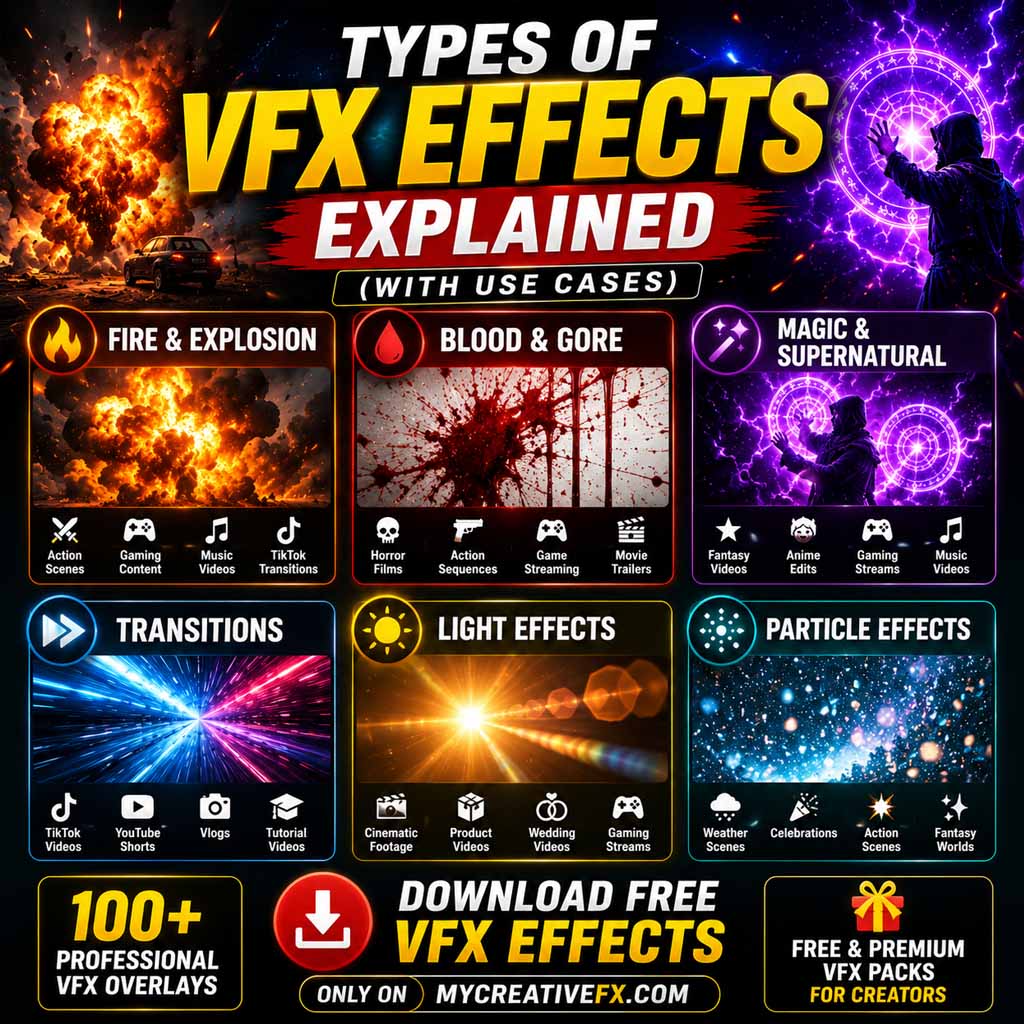
Visit MyCreativeFX and browse by category: Action (muzzle flash, blood, impact), Transitions (glitch, wipe, zoom), Ambient (glow, light leak, sparkle), or search by name (e.g., "muzzle flash").
Instead of a generic "download" button, select "Download for CapCut." The file downloads optimized for instant import with correct settings.
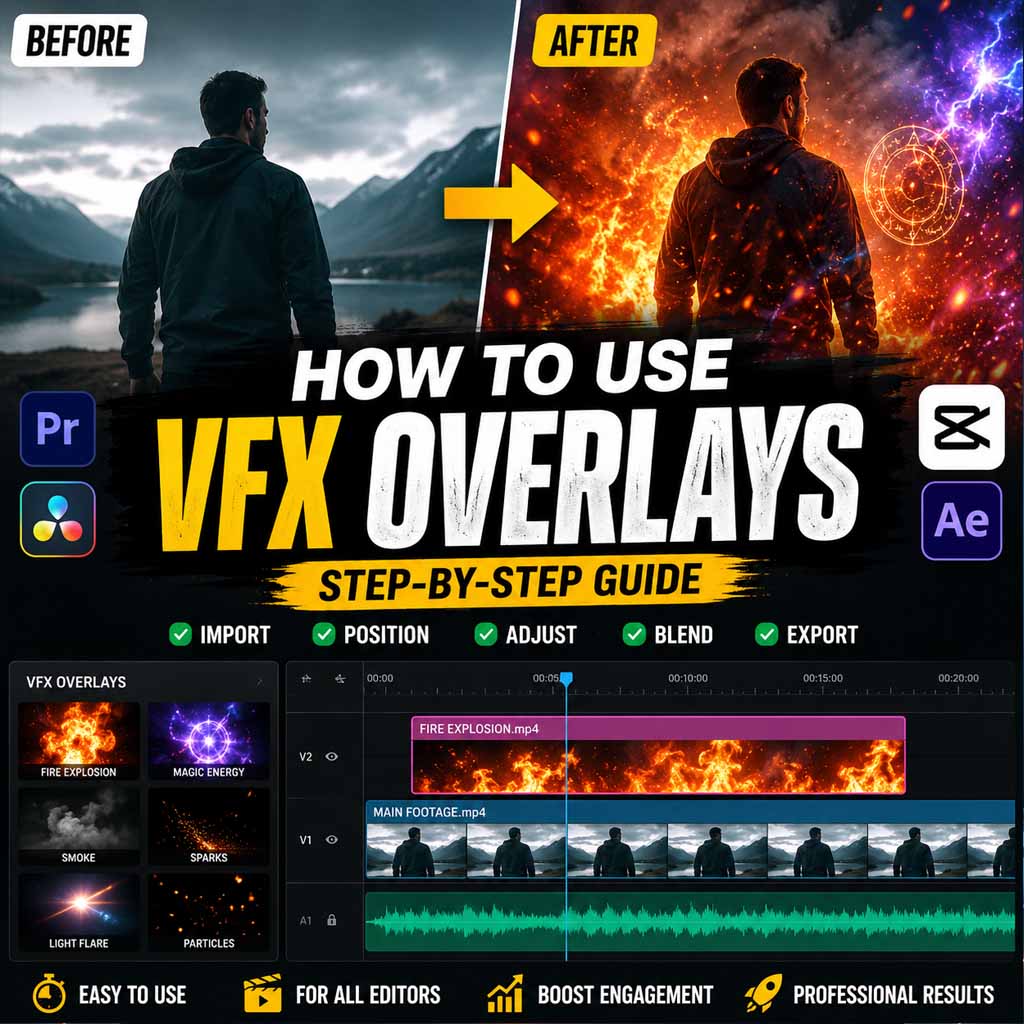
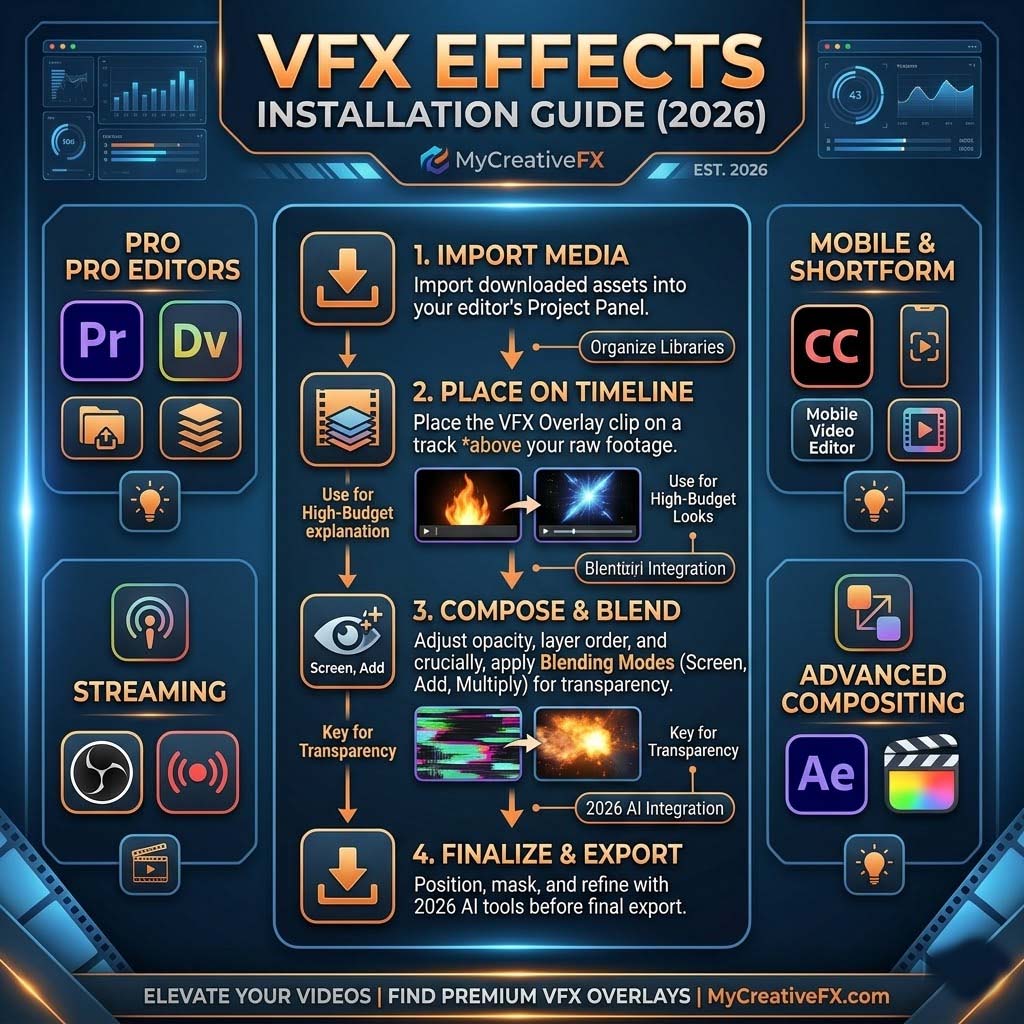
Create a new project or open an existing one. On the timeline, add a new video track above your footage (this is where the VFX will sit).
Mobile: Tap Effects → Uploads → Select your downloaded file → Drag onto timeline.
Desktop: Effects panel → My uploads → Find your file → Drag and drop onto timeline.
Tap the effect on the timeline to adjust duration, scale, position, and opacity. Most effects blend best at 80–90% opacity.
Tap Export, choose resolution (1080p is standard for TikTok/Reels), and save to your camera roll. Done.
Perfect for action TikToks, pranks, reaction content, and comedic skits. Multiple gun types: pistol, rifle, shotgun, sniper.
How to use: Place at the moment a character fires or reacts. Layer 2–3 flashes for realism. Best at 75–85% opacity.
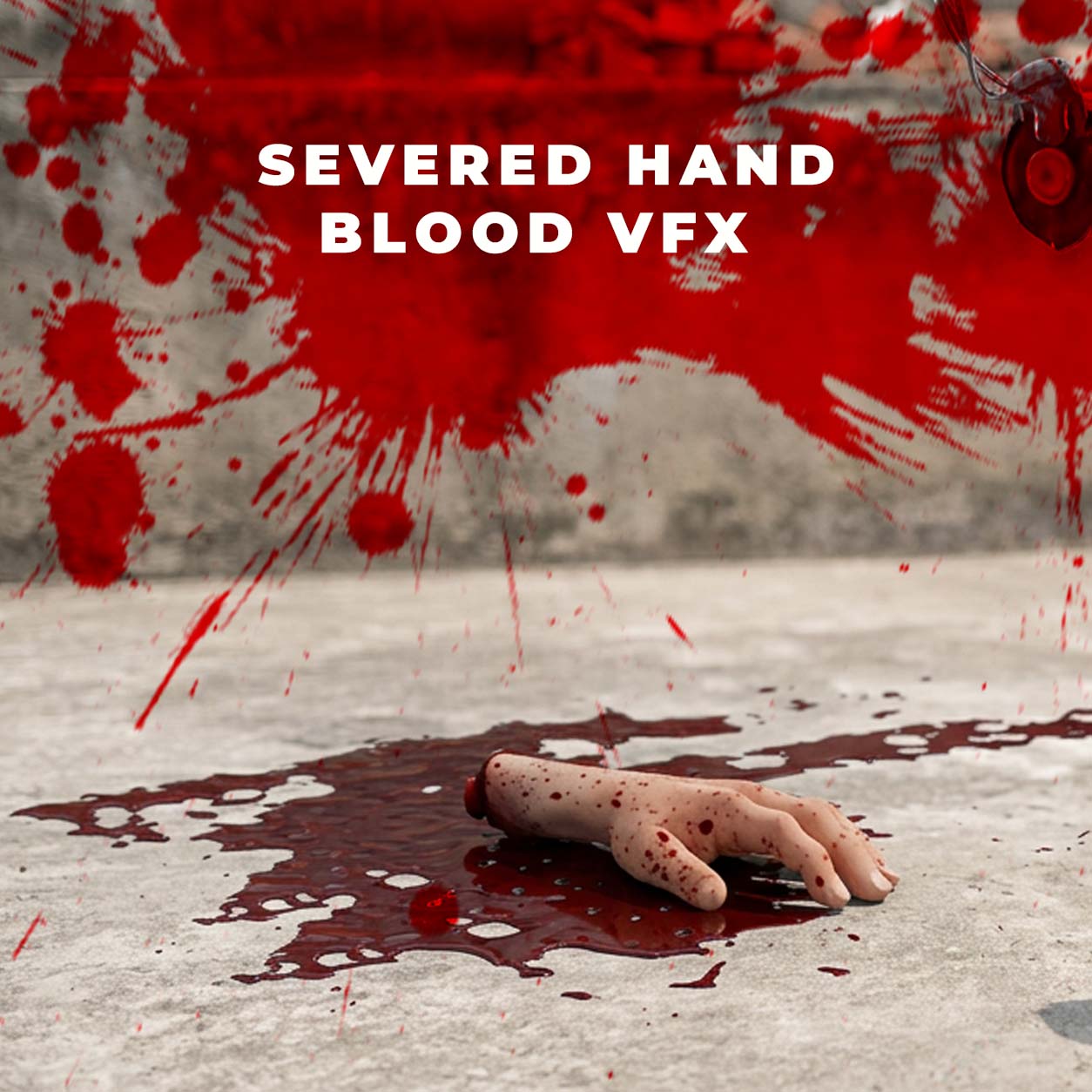
Create fake injury effects, horror skits, or comedic gore. Splatters in all directions—full-body hits, drips, droplets.
How to use: Layer on impact frames. Pair with sound design (wet splat SFX) for maximum realism.
Cinematic explosions from small fireworks to building-destroying blasts. Includes smoke and debris.
How to use: Center on impact point. Use at 90–100% opacity. Layer smoke effects for depth.
Seamless transitions between clips—glitch wipes, particle zooms, digital breakdowns.
How to use: Place between two clips on the timeline. Keep duration to 0.3–0.5 seconds for snappy editing.
Neon glows, laser beams, light leaks, sparkles, magical auras.
How to use: Layer above footage at 60–75% opacity. Perfect for subtle mood enhancement.
Animated text reveals, zoom pops, spinning icons, emphasis effects.
How to use: Pair with on-screen text. Keep brief (under 1 second).
Don't use one effect per shot. Layer 2–3 subtle effects for cinematic depth. Example: Impact hit + light flash + sound design = professional quality.
Most effects look best at 75–90% opacity. This prevents them from overpowering your footage. Adjust in the effect properties panel.
Action effects (explosions, impacts) should be under 0.5 seconds. Transitions: 0.3–0.5 seconds. Ambient (glows, sparkles) can be longer (1–2 seconds).
VFX without sound feels cheap. Pair every effect with matching SFX: gunshot sound for muzzle flash, wet splat for blood, boom for explosion.
If your video has a color grade (blue cool tone, warm orange, desaturated B&W), choose effects that match. Most VFX are color-neutral, but test opacity to blend.
1–2 effects per 3-second clip is ideal. More than 4 effects per video feels chaotic.
CapCut: Easiest VFX import, mobile-optimized, drag-and-drop simplicity
Adobe Premiere Pro: More control over properties, better for 4K, steeper learning curve
DaVinci Resolve (Free): Professional-grade, works on all platforms, harder for beginners
Why CapCut wins: Effects import 1-click. No manual file conversion. Perfect for mobile creators.
Solution: Ensure the file is in the Downloads folder. On mobile, check permissions (Settings → Apps → CapCut → Storage).
Solution: You've over-scaled the effect. Keep scale to 100% or less. For mobile videos, 1080p effects are the max resolution.
Solution: VFX files are video-only (no audio). Add sound effects separately in CapCut's audio library.
Solution: Adjust opacity to 75–85%, add matching sound design, ensure position aligns with action in footage.
Yes, 100% free. No hidden subscriptions, no watermarks, no sign-up required. Download and use forever.
Yes. All effects are royalty-free. Use in monetized TikToks, YouTube videos, and paid client projects.
No. Downloaded effects work in both CapCut Free and CapCut Pro. No upgrade required.
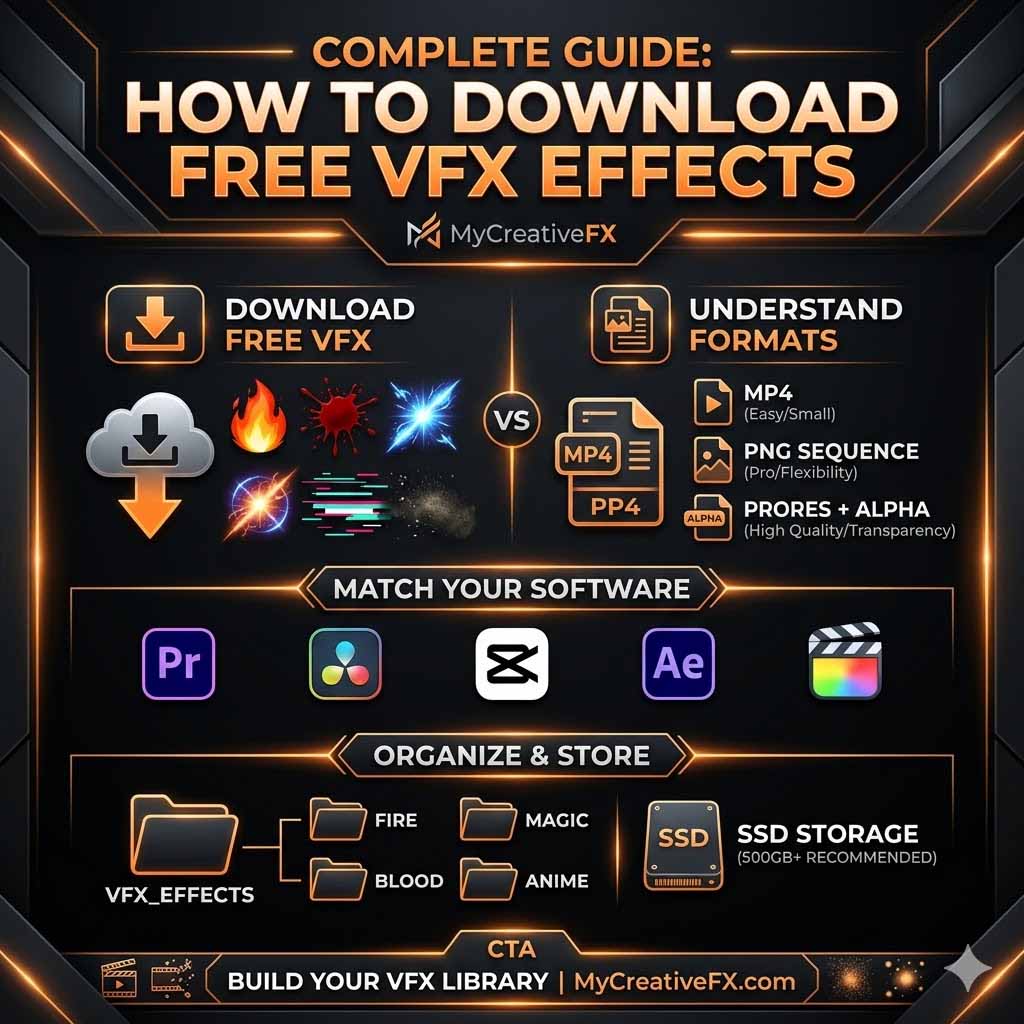
For TikTok/Instagram Reels: MP4, 1080p, 9:16 aspect ratio (vertical). For YouTube: 1080p–4K, 16:9 aspect ratio. CapCut defaults are correct.
Yes, both. Mobile: download from the app, then open in CapCut. Desktop: download, then import via CapCut desktop.
1–2 effects per video for beginners. 3–4 for experienced editors. More than 5 looks chaotic. Quality over quantity.
Now that you know how to download and use VFX in CapCut, here's your growth roadmap: