CapCut Effect Packs: The Complete Guide to Mobile Effects + Bundle Resources
CapCut dominated mobile video editing so completely that "CapCut editor" became synonymous with "mobile creator." But most people don't realize CapCut's effect ecosystem is far deeper than the built-in library.
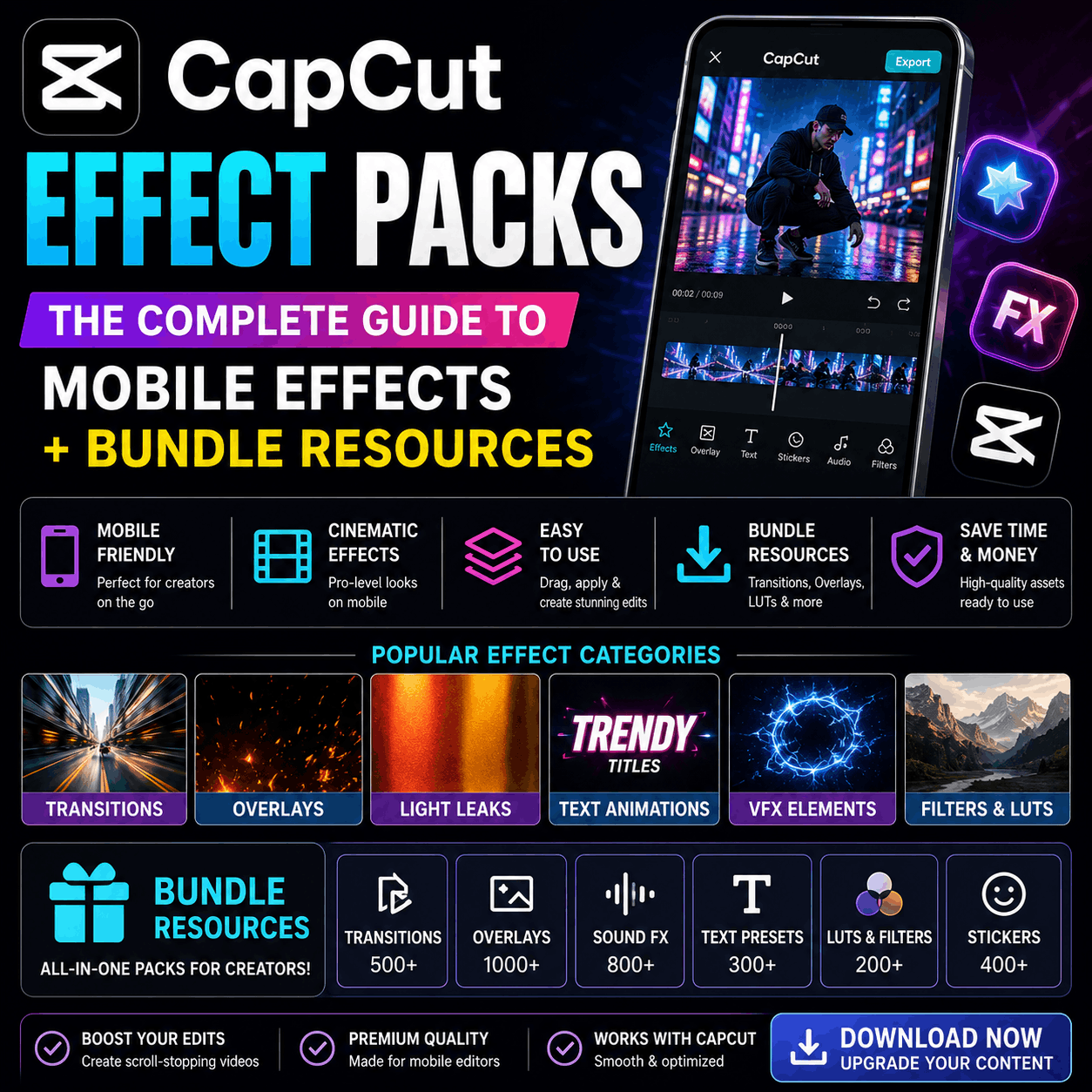
This guide explains how CapCut effect packs work, why they're essential for TikTok/Shorts creators, and where to find massive libraries of specialized packs within 5000+ asset collections.
What Are CapCut Effect Packs? (And Why You Need Them)
The CapCut Ecosystem
CapCut is built on effects. Every transition, filter, sound design element, and overlay is technically an effect. CapCut effect packs are curated collections of effects organized by:
- Type: Transitions, filters, text effects, stickers, overlays
- Trend: Updated monthly to match viral trends
- Genre: Gaming, music, comedy, drama, educational, beauty
- Creator type: TikTok, YouTube Shorts, Instagram Reels, streaming overlays
Why CapCut Effect Packs Matter
Mobile creator workflow reality:
- You're editing on phone, not desktop
- You need effects applied in seconds, not minutes
- You work with trends that change weekly
- You post multiple videos daily
Built-in CapCut effects are decent, but limited. Effect packs expand your toolkit from "basic" to "professional quality."
A TikTok creator with only built-in effects:
- Limited transition variety (viewers recognize repetition)
- Generic aesthetic (looks like everyone else's CapCut content)
- Slower editing (hunting through menus for effects)
- Trend lag (new effects available, but not in built-in library)
A TikTok creator with specialized effect packs:
- 100+ transition variations (never repeat effects)
- Distinctive aesthetic (custom packs available)
- Faster editing (organized packs, quick apply)
- Trend-aligned (packs updated weekly for viral trends)
The difference between "looks professionally edited" and "looks like CapCut default" often comes down to having packs beyond the built-in library.
How CapCut Effect Packs Work (Technical Overview)
CapCut Native Effect Format
CapCut uses proprietary effect format (not universal like After Effects). This means:
- ✅ Effects are optimized for mobile (render fast, low CPU usage)
- ✅ One-tap integration (import pack, effects appear in library)
- ✅ Mobile-specific adjustments (parameters designed for touchscreen editing)
- ❌ Can't export to Premiere/After Effects (CapCut-exclusive)
- ❌ Can't use desktop effect packs directly (format incompatibility)
Installing Effect Packs in CapCut
Process (similar across iOS/Android):
- Download effect pack file (.zip or direct import link)
- Open CapCut
- Navigate to Effects > Import effects
- Select downloaded pack
- Effects appear in your library under custom category
Time investment: 30 seconds per pack
What Happens Inside Your CapCut Library
Once imported, effects integrate into CapCut's interface:
- New category appears in Effects menu (e.g., "Trending Transitions," "Horror Effects")
- Effects thumbnail previews display in grid
- One-tap apply to clips
- Can't edit effect parameters within CapCut (apply as-is)
- Effects stack with built-in effects (don't replace, they add)
This is why CapCut creators accumulate effect packs. Each pack adds a category. Many professional creators have 30-50 packs installed, creating a massive custom library.
Types of CapCut Effect Packs (5000+ Asset Ecosystem)
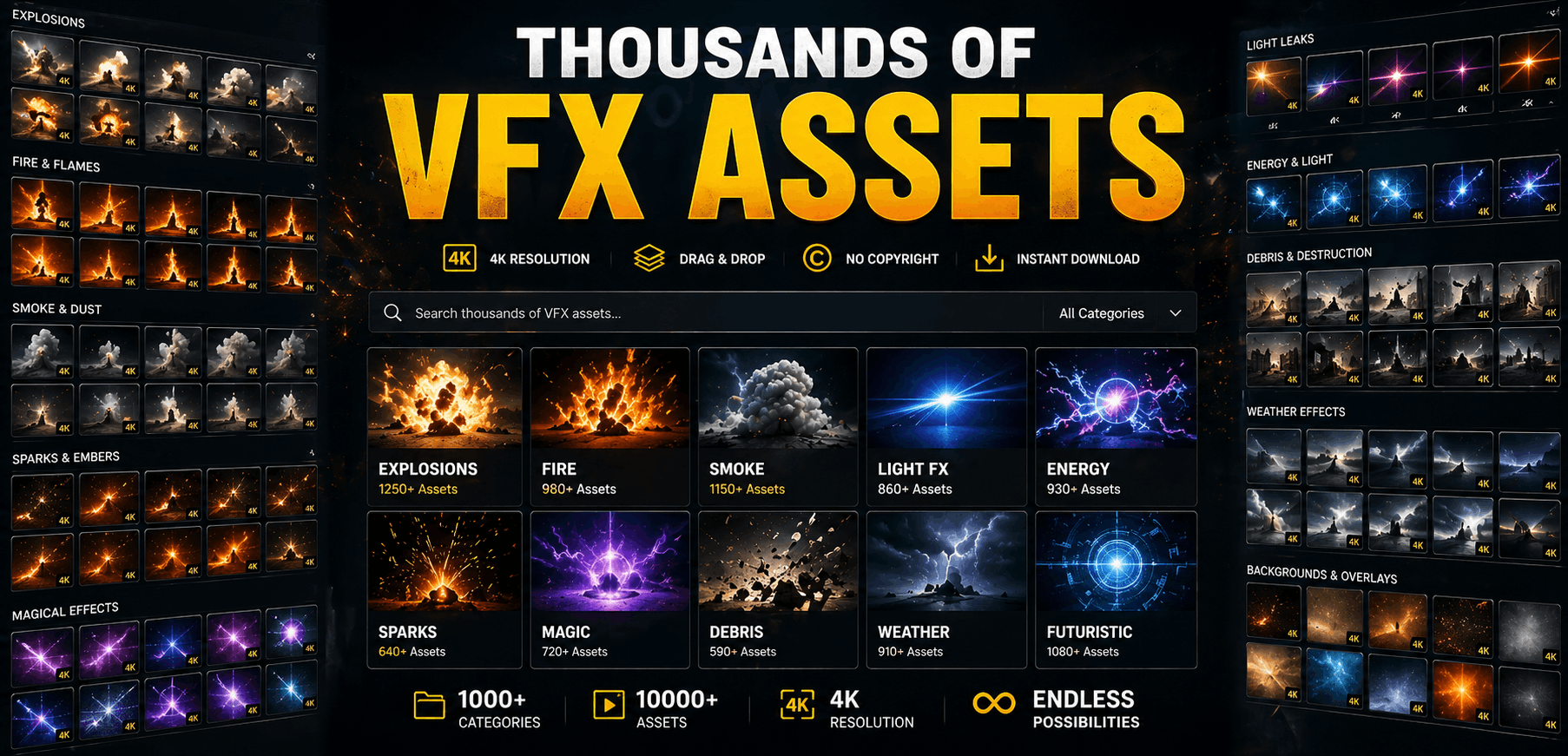
Platforms with 5000+ assets organize CapCut effects into:
1. Transition Effect Packs
What they are: Movement transitions between clips—the most downloaded CapCut effects.
Variations:
- Directional transitions: Clip slides left, right, up, down with effects
- Rotation transitions: Clip spins, flips, rotates between cuts
- Zoom transitions: Clip zooms in/out as it transitions
- Shape transitions: Shapes morph/appear as clips swap
- Text transitions: Text appears as transition element
- Object transitions: Props, elements transition between clips
- Glitch transitions: Digital glitch effects
- Particle transitions: Confetti, sparkles, particles fill screen
- Smooth transitions: Elegant fade/dissolve variations
Bundle size: 20-50 transitions per pack
Best for: Every CapCut creator. Transitions are the foundation of mobile editing.
Popular trend packs:
- TikTok trending transitions (updated weekly)
- YouTube Shorts smooth transitions
- Instagram Reels aesthetic transitions
- Gaming stream transitions
- Comedy/meme transitions
2. Filter & Effect Packs
What they are: Color grades, filters, visual effects applied to clips.
Variations:
- Color filters: Vintage, cinematic, viral aesthetic color grades
- Blur effects: Motion blur, depth blur, pixelate effects
- Light effects: Glows, flares, light leaks, neon
- Distortion: VHS, analog, digital glitch effects
- Weather effects: Rain, snow, dust overlays
- Light saber/glow effects: Drawn light trails over video
Bundle size: 15-30 effects per pack
Best for: Content creators wanting consistent aesthetic across videos.
Popular packs:
- Cinematic color grades (film-style color correction)
- Viral TikTok aesthetics (trending filters)
- Vintage/retro filters (film emulation)
- Neon effects (synthwave, cyberpunk)
- Gaming filters (streamer overlays)
3. Text & Typography Packs
What they are: Animated text effects, lower-thirds, title animations.
Variations:
- Title animations: Text appears with motion (slide, fade, pop, etc.)
- Lower-third graphics: Text + background combinations
- Callout effects: Emphasis text mid-video
- Credit rolls: Animated ending credits
- Karaoke effects: Lyrics synced to music with animations
- Sticker text: Emoji text combinations
Bundle size: 20-40 text effect variations per pack
Best for: Education creators, storytellers, content with dialogue.
Popular packs:
- Gaming/streamer lower-thirds
- Education/tutorial title animations
- Story/narrative text effects
- Comedy/meme text animations
- Music/lyric video text effects
4. Sticker & Overlay Packs
What they are: Visual elements overlaid on video (not transitions or effects, but elements).
Variations:
- Emojis/stickers: Animated emoji and character overlays
- Graphic elements: Arrows, shapes, frames, borders
- Character overlays: Cartoon characters reacting to video
- Branded elements: Logo animations, brand-specific graphics
- Social proof: Comment/reaction overlays (YouTube, Instagram UI elements)
Bundle size: 30-50 stickers per pack
Best for: Gaming, comedy, educational content with emphasis.
Popular packs:
- Gaming reaction stickers
- Comment/reaction overlays
- Animated emojis and characters
- Arrow/point-out stickers
- Beauty/makeup overlays
5. Sound Effect Packs
CapCut effects include audio:
- Transition sounds: Audio cues when transitions happen (whoosh, pop, etc.)
- Notification sounds: Comment, like, follow notification effects
- Background music tags: Musical stings synced to effects
- Sound FX: Explosion, impact, success, fail sounds
Bundle size: 15-30 unique sound effects per pack
Best for: Gaming, comedy, reaction content where sound effects enhance jokes.
Popular packs:
- Gaming meme sounds (airhorn, fail horn, etc.)
- Notification sounds (YouTube, TikTok, Twitch notifications)
- Music stings and transitions
- Comedy punch sounds
- Mystery/suspense effects
6. Trend-Specific Packs (Monthly Updates)
What makes them special: Effects designed around viral trends happening right now.
How they work:
- Platforms monitor trending TikTok sounds, challenges, formats
- Create effect packs matching the trend
- Release monthly or weekly
- Become outdated quickly (trends last 2-4 weeks)
Examples of trend packs (vary monthly):
- Audio trend reaction effects
- Dance challenge overlays
- Meme format stickers
- Viral sound effect collections
- Challenge-specific graphics
Best for: Creators who post daily and want trend-aligned content.
Reality check: Trend packs are high-velocity. Download this month's pack, use heavily, move on to next month's trends.
7. Genre-Specific Bundles (5000+ Library Organization)
Large asset libraries organize CapCut effects by creator type/genre:
Gaming Packs:
- Stream overlays (viewer count, chat effects)
- Reaction stickers (emotes, characters)
- Game notification sounds
- Victory/defeat effects
- Gameplay highlight transitions
Music/Artist Packs:
- Lyric video effects
- Music video transitions
- Beat-synced animations
- Visualizer effects
- Artist-branded graphics
Beauty/Fashion Packs:
- Makeup tutorial effects
- Filter transitions (makeup before/after)
- Product showcase overlays
- Lighting effects for beauty content
- Fashion styling animations
Education/Tutorial Packs:
- Title and chapter animations
- Arrow and pointer effects
- Process diagram animations
- Quiz/question overlays
- Checklist animations
Storytelling/Drama Packs:
- Emotional moment transitions
- Text effect animations (for narration)
- Scene break effects
- Flashback indicators
- Cinematic filters and color grades
Comedy/Meme Packs:
- Joke timing effects
- Reaction stickers
- Text animation punchlines
- Sound effect comedy cues
- Meme-specific graphics
CapCut Effect Packs from 5000+ Asset Libraries
Freemium Tier
Platforms typically offer free:
- 1-2 basic transition packs (popular, broadly useful)
- 1-2 basic filter packs
- 1-2 basic text effect packs
- Built-in CapCut effects (no additional download)
Premium Tier Unlocks
Upgrading typically gives access to:
- Complete transition library: 200+ transitions across 10+ packs
- Trend packs: New packs monthly
- Specialized bundles: Gaming, music, beauty, education genre packs
- Advanced effects: Complex animations, sophisticated filters
- Early access: New effects before public release
Price model: Usually $5-20/month or $49-99 lifetime for all CapCut packs.
Bundle Organization
Quality platforms organize packs like:
CapCut Effects
├── Transitions
│   ├── Basic (free)
│   ├── Trending (monthly, premium)
│   ├── Smooth (cinematic)
│   ├── Glitch (digital)
│   └── Particle (effects-heavy)
├── Filters & Effects
│   ├── Cinematic (color grades)
│   ├── Vintage (retro)
│   ├── Trending (seasonal)
│   ├── Gaming (game-specific)
│   └── Light Effects (glow, neon)
├── Text & Stickers
│   ├── Title Animations (free)
│   ├── Gaming Overlays
│   ├── Beauty/Fashion
│   ├── Education
│   └── Trending Stickers
└── Sound Effects
    ├── Transitions (free)
    ├── Notifications (premium)
    ├── Gaming Sounds
    └── Music Stings
Having 5000+ assets lets platforms curate CapCut packs across all these categories, so creators never run out of options.
How to Choose CapCut Effect Packs for Your Content
Step 1: Define Your Content Type
What do you create on TikTok/Shorts?
Gaming: Download gaming transition packs, gaming sticker packs, notification sounds Music/Artists: Download lyric video packs, beat-synced effects, visualizer effects Beauty/Fashion: Download makeup transition effects, filter packs, styling overlays Education: Download title animations, diagram effects, process overlays Comedy: Download meme transitions, reaction stickers, sound effect packs Drama/Story: Download cinematic transitions, text animations, emotional effect packs General/Lifestyle: Download trending transition packs (updated monthly), popular filter packs
Step 2: Start with Transitions
Why: Transitions are used in every video. Strong transition variety makes editing visibly better.
Download strategy:
- Start with 1-2 popular transition packs (get familiar with CapCut integration)
- Pick packs matching your content aesthetic (smooth transitions for drama, glitch for gaming, etc.)
- Aim for 50+ transitions total to avoid repetition
A creator with 50 transitions can make 50 videos using different transitions each time.
Step 3: Add Filters Matching Your Aesthetic
Why: Filters unify your brand aesthetic. Consistent color grading makes your feed recognizable.
Download strategy:
- Choose 1-2 filter packs matching your vibe (cinematic, vintage, neon, etc.)
- Apply same filter to multiple videos for visual cohesion
- Update filters seasonally to stay fresh
Step 4: Genre-Specific Packs (Based on Content)
Once you have transitions and filters, add:
- Gaming creators: Gaming stickers, notification sounds, reaction overlays
- Music creators: Lyric video effects, beat-synced animations
- Beauty creators: Makeup filter transitions, product showcase overlays
- Education creators: Title animations, diagram effects, process visualizations
Step 5: Trend Packs (Monthly Rotation)
Download trending packs monthly:
- Stay relevant to current trends
- Build content aligned with viral formats
- Swap out last month's trend pack for this month's
Pro Tips for CapCut Effect Pack Mastery
Tip 1: Don't Overload Your Library
Installing 50 packs might seem smart, but it creates problems:
- ❌ Library becomes overwhelming (hard to find effects you want)
- ❌ Performance sluggish (too many effects slow down app)
- ❌ Decision paralysis (too many options = slower editing)
Better approach: Install 10-15 packs you actually use regularly. Add more as needed.
Tip 2: Organize by Favorite/Usage
CapCut lets you star favorite effects:
- Star your go-to transitions
- Keep frequently-used effects easily accessible
- Deprioritize effects you never use
This speeds up editing workflow. Instead of scrolling through 200 transitions, you access your 10 favorites in seconds.
Tip 3: Vary Effects to Avoid Repetition
Problem: You find a transition you love, use it in 10 videos. Viewers notice repetition.
Solution: Force yourself to use different transitions:
- Use transition A in videos 1-2
- Use transition B in videos 3-4
- Rotate through your pack
Variety keeps your content looking fresh and prevents viewer fatigue.
Tip 4: Match Effects to Clip Content
Best practice: Choose effects that match the clip's meaning.
- Energetic clips: Fast, poppy transitions
- Emotional clips: Smooth, cinematic transitions
- Gaming content: Glitch, digital transitions
- Story/drama: Elegant, smooth transitions
Mismatched transitions (using a glitch effect for a sad moment) feel jarring.
Tip 5: Sound Effects + Visual Effects Together
The best CapCut content pairs:
- Visual transitions (movement + effects)
- Sound effects (audio cue)
- Music (beats matching cuts)
Effects packs with integrated sounds are more powerful than visuals-only. The audio reinforces the visual cut.
Tip 6: Download Sample Packs Before Committing
If a platform lets you preview effects:
- Watch demo videos
- Test import on one pack before downloading 10
- Confirm effects work on your phone (some older phones render effects differently)
Common CapCut Effect Pack Mistakes
❌ Mistake 1: Using Same Transition in Every Video
Problem: Viewers immediately notice you use one transition repeatedly.
Solution: Download pack with 20+ variations, rotate through them.
❌ Mistake 2: Installing Packs and Never Using Them
Problem: You download 30 packs, overwhelmed by choices, fall back to built-in effects.
Solution: Start with 3-4 packs. Master them. Add more intentionally.
❌ Mistake 3: Ignoring Trend Packs
Problem: You use same effects as last month. Content looks outdated compared to viral TikToks.
Solution: Check trend packs monthly. Download current trends. Use in 2-3 videos while trend is hot.
❌ Mistake 4: Using Effects That Don't Match Your Content
Problem: You use glitch effects in emotional storytelling. Looks wrong.
Solution: Match effect style to clip emotion/genre. Build multiple packs for different content types.
❌ Mistake 5: Effects Masking Poor Content
Problem: You over-rely on effects to cover weak footage.
Solution: Good content is 80%, effects are 20%. Use effects to enhance, not compensate.
CapCut Effect Packs for Different Creator Types
TikTok Creators (Daily Upload, Trend-Focused)
Pack strategy:
- 2-3 trend transition packs (download monthly)
- 1 trendy filter pack (updated seasonally)
- 1-2 trending sticker packs
- Sound effect packs matching current audio trends
Refresh rate: Monthly (swap out old trends for new)
Time investment: 30 min per video (editing + effect selection)
YouTube Shorts Creators
Pack strategy:
- Smooth, cinematic transition packs (less trendy, more timeless)
- Cinematic filter packs (consistent aesthetic)
- Title animation packs (if you use on-screen text)
- Music sting/transition sound effects
Refresh rate: Quarterly (trends change slower on Shorts than TikTok)
Time investment: 20-30 min per video (Shorts workflow faster than TikTok)
Gaming Streamers/Content Creators
Pack strategy:
- Gaming-specific transition packs
- Stream overlay sticker packs (chat, viewer count, alerts)
- Notification sound effect packs
- Reaction/emote sticker packs
- Victory/defeat celebration effects
Refresh rate: Monthly (gaming culture moves fast)
Time investment: 30 min per 5-minute video (gameplay highlight edits)
Music/Artist Creators
Pack strategy:
- Lyric video effect packs
- Beat-synced animation packs
- Visualizer effect packs
- Transition packs with musical timing
- Artist-branded graphic packs
Refresh rate: Per release (effects tailored to specific songs)
Time investment: 60+ min per music video (complex effects)
Beauty/Fashion Creators
Pack strategy:
- Makeup tutorial transition packs
- Filter/effect packs (beauty product showcases)
- Before-and-after comparison effects
- Product showcase overlays
- Styling/outfit effects
Refresh rate: Seasonal (trends in beauty rotate quarterly)
Time investment: 20-25 min per video (tutorial format faster)
Cost Comparison: Free vs. Paid CapCut Packs
Free-Only Approach
- Cost: $0/month
- Effect packs: Built-in CapCut effects only (~20 transitions, 10 filters)
- Downsides: Limited variety, obvious repetition, looks generic
- Best for: Hobbyists, learning, no budget
Freemium Approach (Free + Selective Premium)
- Cost: $0 + $5-10/month for 2-3 premium packs
- Effect packs: Free basic effects + targeted premium packs
- Upside: Affordable, curated selection, avoids overwhelm
- Best for: Semi-pros, creators on budget, quality-focused
Premium Tier Approach (Full Access)
- Cost: $99-199 lifetime or $10-20/month subscription
- Effect packs: 5000+ assets, complete CapCut packs, all categories
- Upside: Never run out of effects, trend packs monthly, professional library
- Best for: Professional creators, full-time studios, creators uploading daily
Time value calculation:
- A creator saving 10 min per video = 50 min/week = 200 min/month
- Time value at $20/hour = $67/month
- Premium tier at $15/month >> $67 value of time saved
For creators uploading multiple videos weekly, premium access pays for itself.
Conclusion: Effect Packs Are Your Competitive Edge
CapCut's built-in effects are decent, but they're the same for everyone. Effect packs let you:
- Stand out (distinctive transitions and filters your followers recognize)
- Edit faster (organized packs vs. scrolling generic menu)
- Stay relevant (trend packs keep you in viral conversation)
- Maintain brand (consistent filters build visual identity)
The difference between "looks like CapCut default" and "professionally edited mobile content" is often just a few quality effect packs.
Start with transitions (the most impactful effects), add filters matching your aesthetic, then specialized packs for your content type. You'll see immediate improvement in your video quality and editing speed.
Next step: Identify your primary content type (TikTok, Shorts, gaming, music, etc.), then download 1-2 transition packs and 1 filter pack matching that style. Test them on your next 5 videos before adding more.

 Premium Plans