 Premium Plans
What Are VFX Packs?
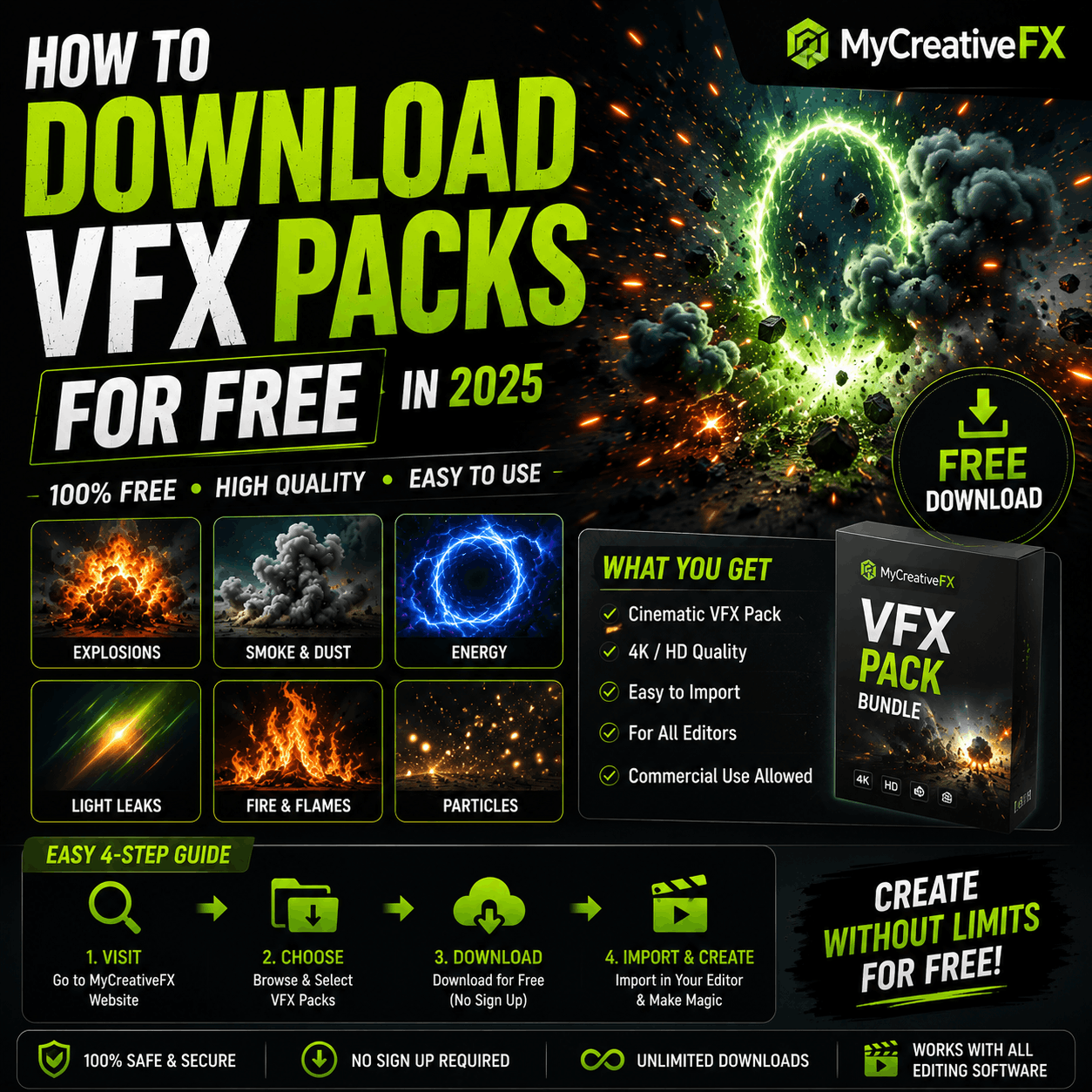
VFX packs — short for visual effects packs — are collections of pre-rendered video effects bundled together by category. Instead of creating fire, smoke, explosions, or light leaks from scratch inside an effects software, you simply download a VFX pack and drop the pre-made overlays directly onto your timeline.
A typical VFX pack might contain 10–50 individual effects all sharing a theme — for example, a Fire VFX Pack could include small flame loops, large fire bursts, embers, burning overlays, and fire transitions. All pre-rendered, all ready to use in seconds.
Good to know: Most free VFX packs on MyCreativeFX are single-file downloads. Premium packs bundle multiple effects together in a ZIP file. Either way, the process to use them in your editor is identical.
Why Download Free VFX Packs in 2025?
Professional VFX software like Adobe After Effects or Nuke costs hundreds to thousands of dollars per year — and requires significant technical expertise. Free VFX packs solve this entirely. You get the output of professional VFX rendering without needing the software or the skill to create effects from scratch.
Here's why creators are increasingly choosing to download free VFX packs rather than creating effects manually:
- Speed: Add high-quality effects in seconds, not hours
- Zero learning curve: No complex software needed — just drag and drop
- Professionally rendered: Looks better than most DIY attempts in basic editors
- Cost-free: No subscription or one-time fee required
- Royalty-free licensing: Use in commercial YouTube, TikTok, and client videos
Best Free VFX Packs to Download in 2025
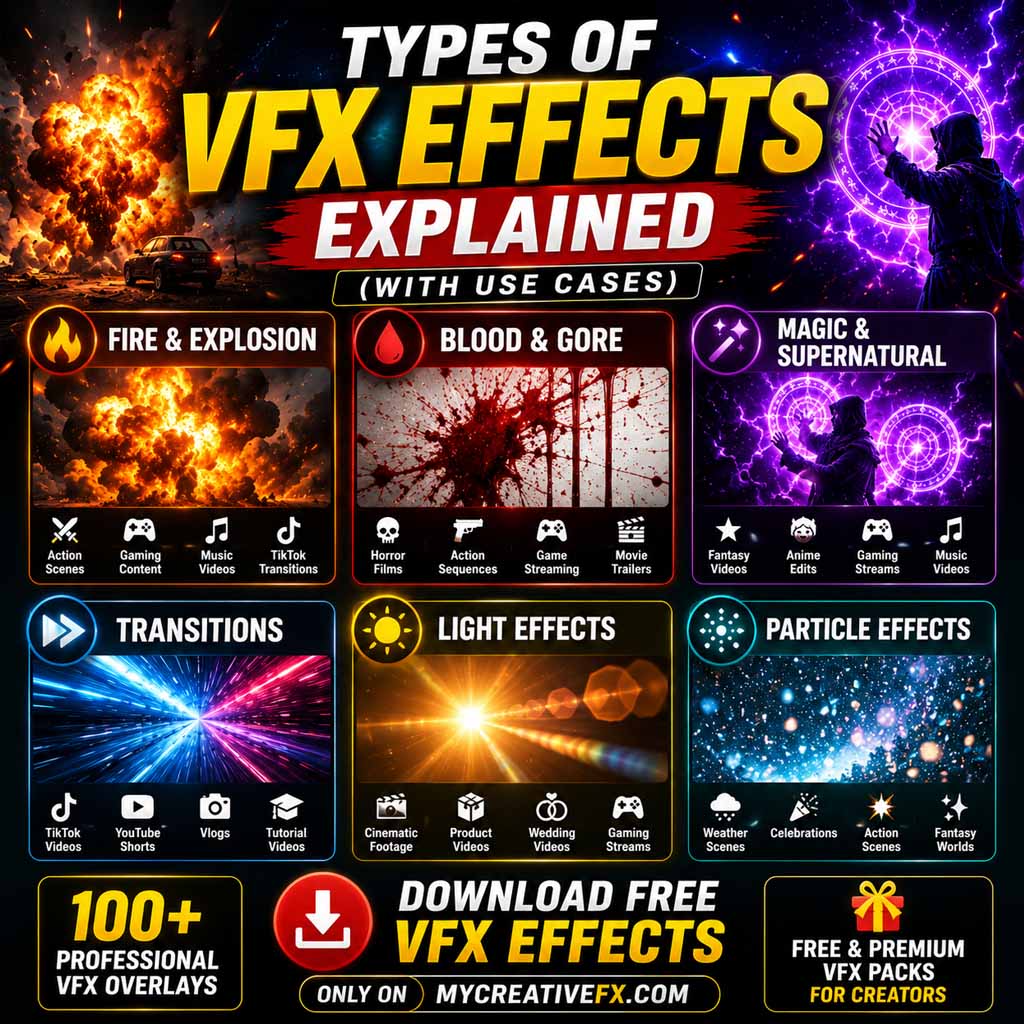
Not all VFX packs are created equal. Below are the top categories by demand from short-form creators in 2025 — all available as free downloads on MyCreativeFX:
Fire VFX Pack
Flame loops, fire bursts, ember overlays. Blend mode: Screen.
Smoke VFX Pack
Atmospheric smoke plumes and fog loops for moody visuals.
Explosion VFX Pack
Shockwaves, pyro blasts, debris clouds for action edits.
Muzzle Flash Pack
Realistic gun muzzle flashes in MOV format with alpha channels.
Light Leak & Flare Pack
Cinematic light leaks and lens flares for warm, film-style looks.
Lightning & Energy Pack
Electric arcs and energy bursts for power and superhero edits.
Rain & Weather Pack
Rain overlays, snowfall, and storm effects for emotional scenes.
CapCut VFX Pack
Vertical 9:16 optimized VFX, ready to use in CapCut with Screen mode.
Glitch & Digital Pack
RGB splits, pixel glitches, screen distortion overlays for tech edits.
How to Download VFX Packs — Step by Step
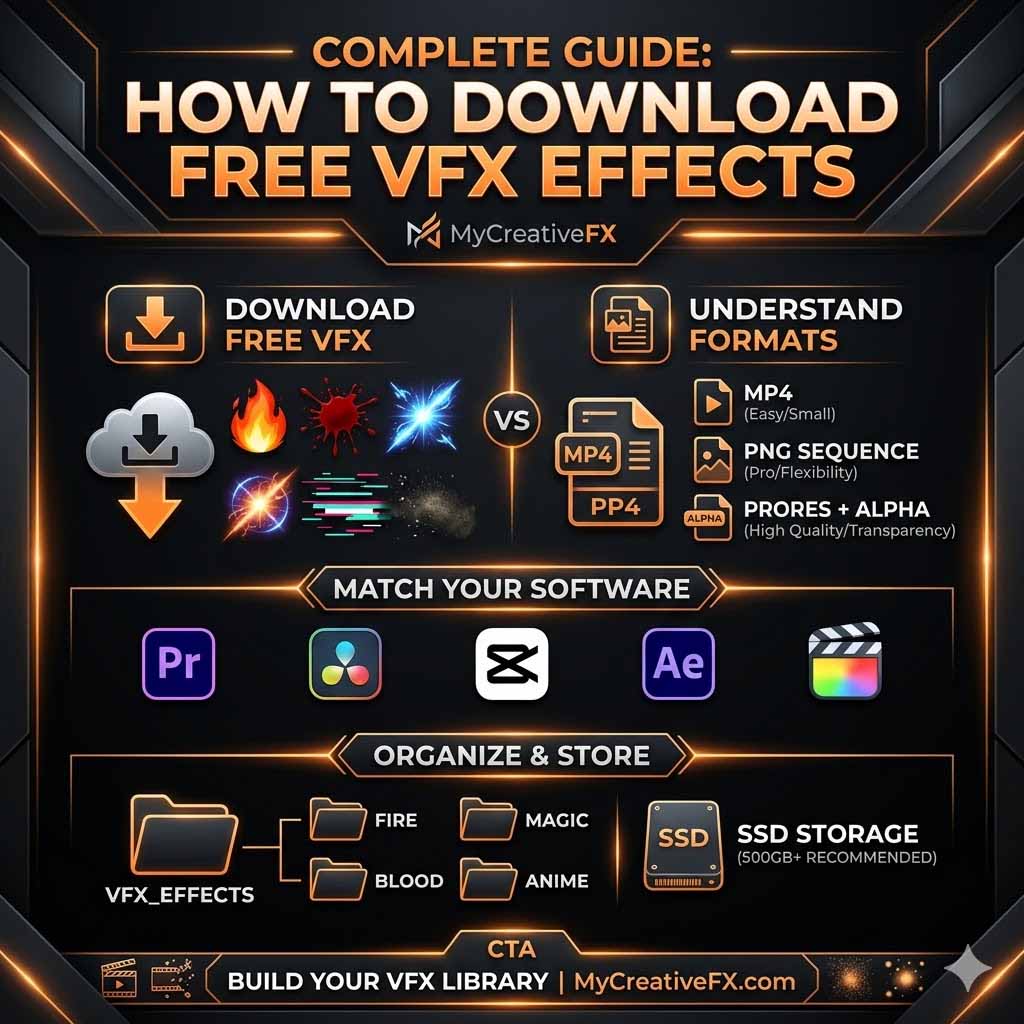
Downloading from MyCreativeFX is designed to be as frictionless as possible. No account needed for free packs. Here's the full process:
Go to MyCreativeFX.com
Visit mycreativefx.com/effects to access the full VFX library. No sign-up or account required to browse.
Filter by Category or Keyword
Use the category filter (Fire, Smoke, Explosion, CapCut, etc.) or search by keyword like "muzzle flash" or "rain overlay" to find the right pack.
Check the Preview
Every effect has a preview clip. Watch it to confirm the look matches your creative vision before downloading.
Hit the Download Button
For free VFX, click Download Free. The file will save directly to your device — no redirects, no surveys.
Unzip (if a Pack)
Premium packs download as ZIP files. Extract them to a dedicated VFX folder on your device for easy access in your editor.
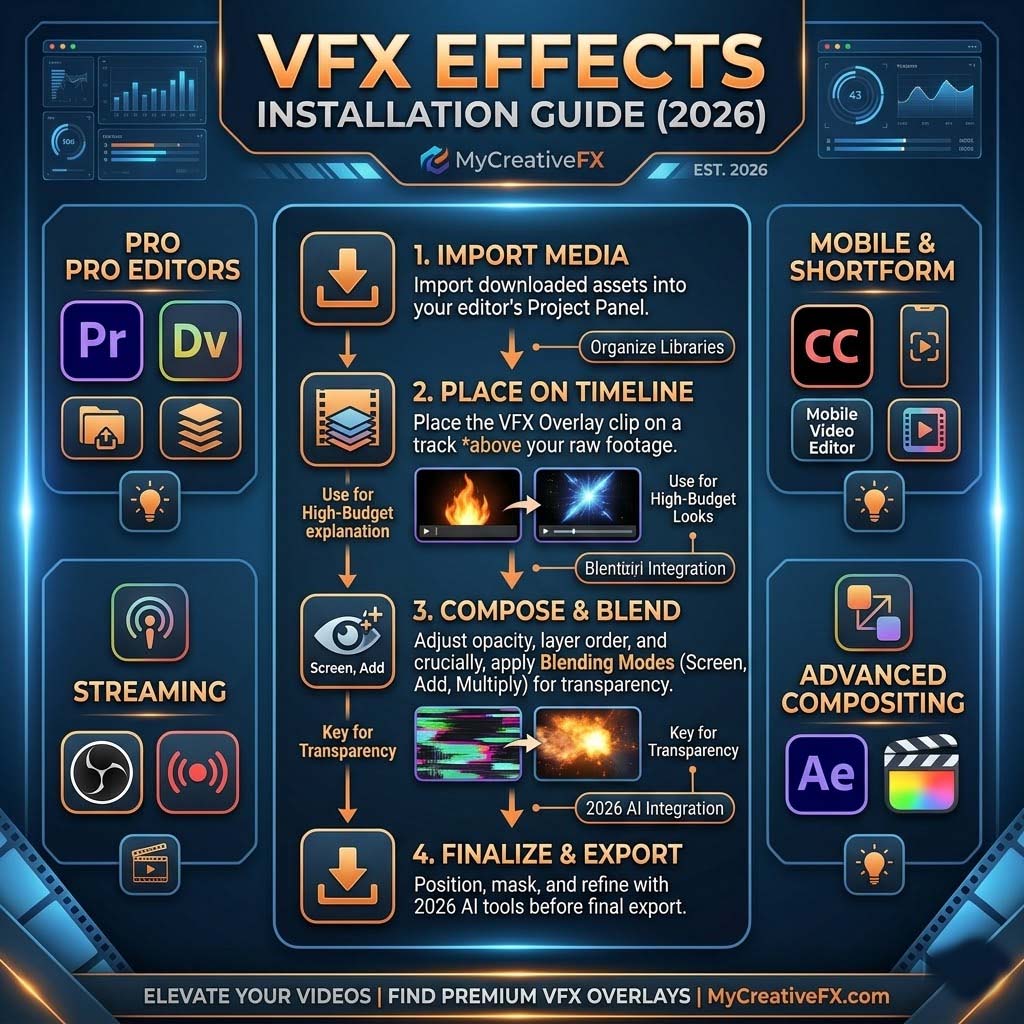
Import to Your Video Editor
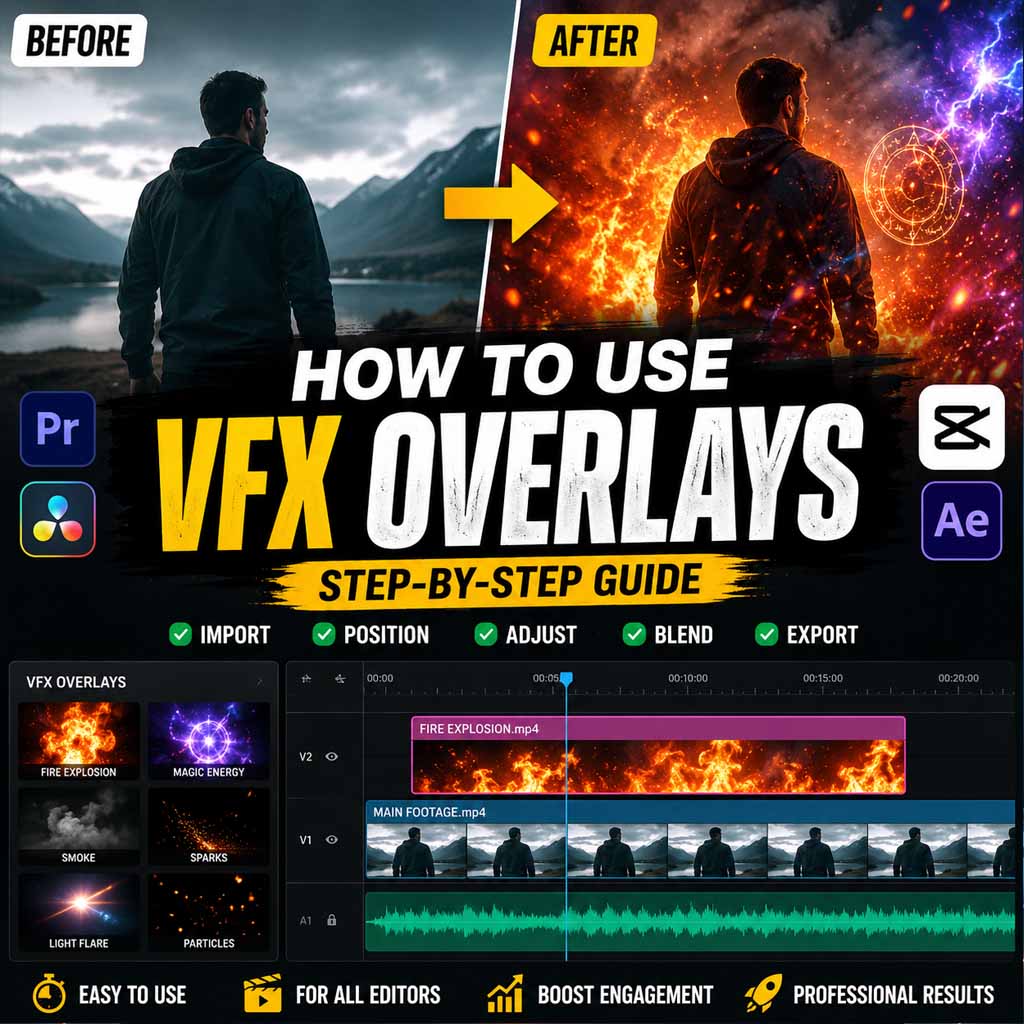
Drag the VFX file into CapCut, Premiere Pro, DaVinci Resolve, or After Effects and start compositing.
How to Use VFX Packs in CapCut
CapCut is the go-to editor for short-form creators. Here's exactly how to apply a downloaded VFX pack in CapCut:
Step 1 — Import Your Footage
Open CapCut, create a new project, and import your main video clip to the timeline.
Step 2 — Add an Overlay Layer
Tap Overlay at the bottom of the screen, then tap Add Overlay. Navigate to the folder where you saved your downloaded VFX pack and select the effect file.
Step 3 — Apply Screen Blend Mode
With the VFX overlay selected on the timeline, tap Blend and choose Screen. This removes the black background and shows only the VFX effect over your footage.
Important: If your VFX appears as a black rectangle over your video, it means you haven't set the blend mode yet. Always switch to Screen or Add for black-background VFX files (MP4 format). MOV files with alpha channels use Normal blend mode.
Step 4 — Resize and Position
Pinch to scale the overlay and drag it to the desired position in the frame. Adjust the duration to match your clip length.
Blend Modes Explained for VFX Compositing
Blend modes are the key to professional-looking VFX compositing. The correct blend mode depends on what kind of VFX file you're working with:
| VFX File Type | Blend Mode | Best For |
|---|---|---|
| MP4 (black background) | Screen | Fire, smoke, sparks, explosions, rain |
| MP4 (black background) | Add / Linear Dodge | Light leaks, lens flares, energy effects |
| MOV (with alpha) | Normal | Any VFX with built-in transparency |
| PNG sequence | Normal | High-detail frame-by-frame animation |
Using Downloaded VFX Packs in Premiere Pro
The workflow in Premiere Pro is similar but gives you more control over compositing:
- Import your VFX file into the Project panel (File → Import)
- Drag the VFX clip onto a new video track above your main footage
- Open the Effect Controls panel and find Opacity → Blend Mode
- Set the blend mode to Screen for MP4 VFX, or Normal for MOV with alpha
- Adjust Scale, Position, and Opacity as needed
- For timed effects (explosions, flashes), use keyframes to control the timing precisely
Pro tip: In Premiere Pro, right-click the VFX clip on the timeline and select Speed/Duration to slow it down to 50% — this makes explosion and fire effects look dramatically more cinematic without any extra effort.
Common Mistakes When Using Free VFX Packs
1. Not Setting the Blend Mode
The #1 mistake beginners make. If you see a black box instead of your VFX, you forgot to switch to Screen mode. This is always the fix.
2. Overscaling the Effect
Stretching a VFX overlay too large reduces its resolution and makes it look pixelated. Try to keep effects at or under 150% of their original size.
3. Wrong Color Temperature
A warm orange fire effect over a cold, blue-graded clip looks unnatural. Either color-grade your footage to match the VFX, or use Hue/Saturation adjustments on the VFX layer to match your scene.
4. Mismatching Frame Rate
If your VFX overlay looks choppy, it may be a frame rate mismatch. Most VFX packs from MyCreativeFX come in 24fps or 30fps. Match your project timeline frame rate to the VFX for smooth playback.
5. Using Low-Quality Downloads
Some free VFX sites compress their files heavily. Always check the resolution and bitrate of what you're downloading. MyCreativeFX serves full-quality 4K files with no compression artifacts.
Frequently Asked Questions
Are free VFX packs actually royalty-free? +
Do I need to create an account to download VFX packs? +
What's the difference between free and premium VFX packs? +
Can I use downloaded VFX in CapCut on my phone? +
What file formats are available for download? +
Can I use free VFX downloads on YouTube monetized channels? +
Final Thoughts
Knowing how to download and use free VFX packs is one of the highest-leverage skills a content creator can develop in 2025. It takes seconds to add an effect that would otherwise require professional software and hours of rendering time.
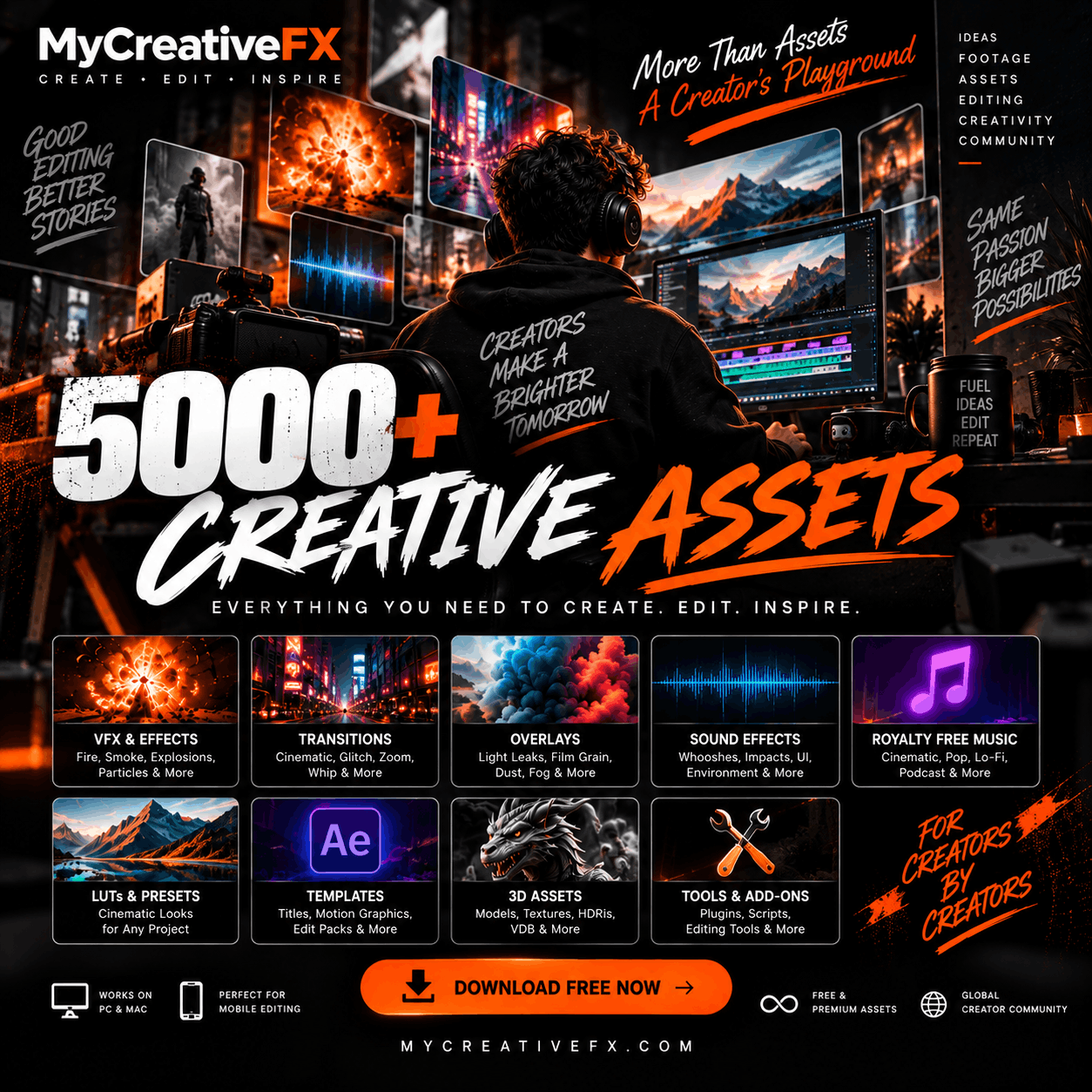
The key is building a solid VFX library from a trusted, high-quality source. MyCreativeFX provides the largest free VFX download library for short-form creators — 5,000+ effects across every major category, royalty-free, no watermarks, and optimized for CapCut, Premiere Pro, DaVinci Resolve, and After Effects.
Start downloading your free VFX packs today and level up every video you create.
Start Downloading Free VFX Packs Now
5,000+ royalty-free effects. No watermarks. No account needed. Works in CapCut, Premiere Pro & more.